

-
Written By Adom Smith
-
Updated on March 2nd, 2026
Fix Error Code 0x80072f06 Quickly – Start Troubleshooting!
User Query:
Hello, I am Daniel from Canada. I’m getting Error Code 0x80072f06 in Outlook whenever I try to sync my mailbox. Can anyone help me resolve this? I’d be very grateful for a quick response.
Hello, I am Daniel from Canada. I’m getting Error Code 0x80072f06 in Outlook whenever I try to sync my mailbox. Can anyone help me resolve this? I’d be very grateful for a quick response.
Summary: If you’re an Outlook user, you’ve probably run into the annoying Error Code 0x80072f06 when attempting to send or receive an email. Error Code 0x80072f06 could occur randomly and significantly disrupt your work. If you’ve used Outlook to communicate with friends and family or to conduct business matters, you know how frustrating this can be. In this comprehensive tutorial, we’ll take a close look at the factors that trigger the Outlook Error Code 0x80072f06; we’ll explain what caused it, why it happened, and most importantly, how to fix it! Furthermore, if the manual steps don’t resolve your Outlook issues, we’ll also include a link to a program/application that can quickly repair Outlook files. Let us get started so we can get Outlook back up and running for you!
Download Now Purchase Now
Download Now Purchase Now
What Is Error Code 0x80072f06?
Error Code 0x80072f06 in Microsoft Outlook usually occurs when a download or synchronization occurs with the Offline Address Book (OAB). The error could also occur after Outlook has attempted to validate a digital certificate, and there is a connectivity problem with Outlook and Exchange Server.
The error message is typically similar to the following:
“Error 0x80072f06: The operation cannot be completed because the certificate has been revoked.”
Why Does the Outlook 0X80072f06 error Occur?
There are a number of underlying issues that you can encounter with the Outlook 0x80072f06 error. Knowing the causes of the failure will help determine the appropriate fix.
- Expired or Revoked Certificate: If the SSL certificate used by your Exchange Server has either expired or been revoked, Outlook will be unable to connect securely.
- Corrupted Outlook Data Files (OST): Outlook stores mailbox data on other data files, so corruption may be the cause of this problem.
- Outdated Version of Outlook: An outdated or otherwise older version of Outlook that is outdated and/or maybe fully compatible with your system or Exchange Server could be a source of conflict.
Steps to Troubleshoot Outlook Error 0x80072f06
We’ll go through a few manual options to resolve this Outlook error. You can try these suggestions one by one until the issue is fixed.
Method 1: Authenticate and reissue Outlook certificates
- If the SSL certificate has been revoked or has reached the end of its useful life, it will need a renewal.
- First, open Outlook.
- Then go to File > Options > Trust Center.
- Then select Trust Center settings and click on Email Security.
- Finally, view the certificate associated with your account to see if it is valid.
Method 2: Delete and Re-Download the Offline Address Book (OAB)
The Offline Address Book may have become outdated and or corrupt. To update the Offline Address Book:
- Close out of Outlook completely.
- After that, open File Explorer and navigate to:
- Find the Offline Address Book folder, and delete the folder.
- Once the folder has been deleted, restart Outlook, and once Outlook has reopened, select Send/Receive.
- Then select Download Address Book to download a fresh copy of the OAB. In most cases.
- This will resolve the problem if it was OAB-related/corrupted, & this process should help to fix it.
| \Users\[YourUsername]\AppData\Local\Microsoft\Outlook. |
Method 3: Disable Antivirus and Firewall Temporarily
Your antivirus may sometimes prevent your version of Outlook from connecting to the Exchange Server.
- To test this, temporarily turn off your antivirus and firewall.
- Then restart Outlook to see if the error has cleared.
Method 4: Update Outlook and Windows
Many times, the problem is that you are running an out-of-date software version, which may present an Outlook connection or compatibility issue.
- To begin, go to File > Office Account > Update Options > Update Now in Outlook.
- Then go to Windows Update and install any pending system updates.
- Finally, reboot the computer to ensure that everything is installed properly.
Method 5: Resolve Outlook Unknown Error 0x80072f06
If you have already performed all these steps and the issue still exists, the problem may be with corrupted OST files. You can possibly repair them manually with a file called ScanPST.exe, or the Inbox Repair Tool.
- First, check if Outlook is completely closed.
- Second, check and locate ScanPST.exe (It usually exists in your Outlook installation folder).
- Third, run the tool with your PST file location
- Fourth, click Start to run the scan and then make the repair.
- Finally, restart Outlook and check to see if the problem was resolved.
Note: However, if it still does not work, the file may be corrupt to a point where using a file repair tool is best.
Automated Method: Fix Error Code 0x80072f06 Using Outlook OST Repair Tool
If manual fixes don’t seem to work or are too technical, typically the best option is to use a professional tool like the Outlook OST Recovery Tool. This is a tool you can use to quickly and easily check your Outlook data files for corruption and repair them without losing any mail or attachments. This software is designed for anyone to use, even if you have little technical knowledge. It will repair your OST file so that it can be reopened and usable in Outlook without any errors or synced mailbox issues.
Also Read:It can really fix Outlook error 0x80040154 and other errors.
Resolving the MS Outlook Error Code 0x80072f06 can be achieved by following the steps below:
- First, you want to download the Outlook OST Recovery Tool onto your computer.
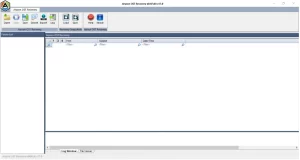
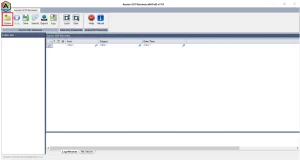
- Then, once it is installed, Click on open and select Select OST File.
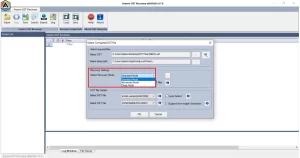
- Then click on and select one of the Recovery Modes:
- Standard
- Advanced
- Deep
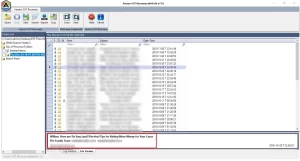
- Next, you click on the emails, contacts, calendars, and attachments to preview and confirm the data you want to recover.
- After that, select Save Repaired File and pick a file type of PST, MSG, EML, MBOX, or DBX or whatever you need.
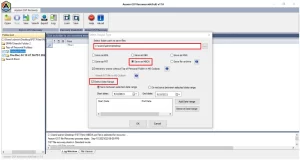
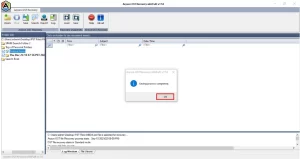
- Finally, choose where on your PC you want to save the repaired file, then click OK to 0x80072f06 Error Code
Conclusion
Error Code 0x80072f06 in Outlook can interrupt your everyday communication and productivity, which can happen if the error is due to certificate or data file issues. However, Error code 0x80072f06 can be easily troubleshot and fixed by using the above methods.
Frequently Asked Questions:
Q.1 What is Error Code 0x80072f06?
Ans: It’s an Outlook synchronization or certificate error that prevents you from downloading or updating your Offline Address Book.
Q.2 Why does Error Code 0x80072f06 occur?
Ans: This happens mainly due to expired certificates, corrupted Outlook data files, or connection issues between Outlook and the Exchange Server.
Q.3 How can I fix Error 0x80072f06?
Ans: You can repair certificates, re-download the Offline Address Book, disable antivirus temporarily, or use the Outlook OST Repair Tool for a quick fix.
Q.4 Can I fix Error Code 0x80072f06 without technical help?
Ans: Yes, basic troubleshooting steps like updating Outlook and clearing the OAB can often solve it. For severe cases, use an automated repair tool.
Q.5 Does Error Code 0x80072f06 affect Windows 10 only?
Ans: No, this error can occur in any Windows version where Outlook is installed, including Windows 11 and 8.
About The Author:

Adom Smith is a DataRecoveryHelp Technology Writer. He is a technology enthusiast with over 3 years of experience in Data Recovery, IoT, Artificial Intelligence, and Robotics. He enjoys researching and sharing DIY solutions as well as tips and tricks for resolving Windows technical issues.
Realted Post


