

-
Written By Adom Smith
-
Updated on March 2nd, 2026
How to Fix Outlook Error 0x800ccc1a – Get Instant Fix Today
Summary: Nowadays, Microsoft Outlook is widely used for sending and receiving emails. However, many users face errors that interrupt their work. Therefore, the main common issue is Outlook Error 0x800ccc1a. This error usually appears when Outlook fails to send or receive emails, leaving users tense. There are several approaches to accomplish the solution. In this guide, you will see several methods, including the Outlook PST Repair Tool, to fix the error.
Download Now Purchase Now
Download Now Purchase Now
What is Outlook 0x800ccc1a Error and its causes?
Basically, this error occurs when users fail to send or receive emails. However, when this error appears on the screen, Outlook cannot connect properly to the mail server. See the common causes below:
- The chosen encryption does not match the server’s requirements.
- Further, incorrect incoming or outgoing server settings.
- Moreover, when Outlook has corrupted PST or OST files.
- When the user uses an outdated Outlook version.
- Above all, it appears when the Outlook profile is damaged.
Now, identify the cause and then apply the right solution quickly and smoothly.
How to Fix Microsoft Outlook Error 0x800ccc1a
Below are some easy and effective solutions to resolve the 0x800ccc1a Outlook Error.
Solution 01: Check Your Email Server Settings
- To initiate, open Outlook and then go to the File option >> Account Settings.
- Now, select your email account and then click Change to continue.
- Then, verify the incoming and outgoing server names.
- Next, check that the port numbers and encryption type are correct.
- Lastly, save changes and restart your Outlook.
Solution 02: Disable the SSL Temporarily
- Further, navigate to the Account Settings and then click on More Settings.
- After that, open the Advanced tab and uncheck SSL for the incoming and outgoing server.
- Now, click OK and then restart your Outlook.
Solution 03: Repair the Outlook Data File (.pst)
- Now, for this close Outlook.
- Then, open the Inbox Repair Tool (ScanPST.exe).
- Now, browse and select your PST file.
- Afterward, click Start to repair and open your Outlook again.
Solution 04: Create a New Outlook Profile
- To start, open the Control Panel and then go to Mail.
- After that, click on Show Profiles >> Add.
- Now, create a new profile and set it as the default profile.
- At last, launch Outlook.
Solution 05: Disable your Antivirus or Firewall Temporarily
- Temporarily disable the antivirus or firewall.
- Then, restart your Outlook.
- Further, check if the 0x800ccc1a error code is resolved.
Solution 06: Update Your Microsoft Outlook
- For this, open Outlook and then go to File >> Office Account.
- Finally, click on the Update Options and then Update Now.
Solution 07: Use an Automated Tool
If using the above method does not resolve the Outlook error 0x800ccc1a, then use the Outlook PST Repair Tool. It helps users to repair their emails, attachments, and other Outlook data. This software’s advanced features make sure to get Outlook back on track. Follow the pointers to know more about this tool.
- It can easily repair corrupted Outlook files.
- Also, the user can restore data in MBOX, PST, and other formats.
- Further, you can select the destination by yourself using the Path to Save option.
- Moreover, it has advanced scanning options.
Working Steps to Repair Outlook:
- Download the Outlook PST Repair Tool.
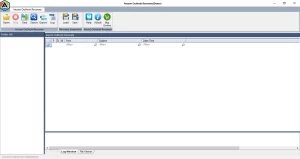
- Then, click on Open and browse the corrupted Outlook files.
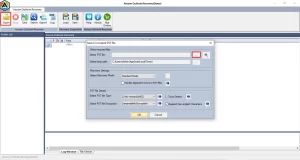
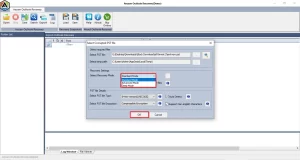
- After that, select the scanning options: Standard, Advanced, and Deep Mode.
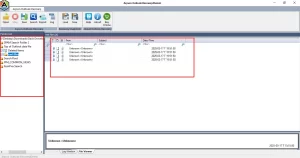
- Now, preview the scanned files along with attachments.
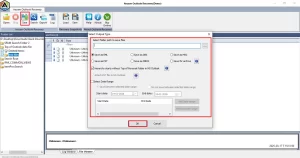
- From the menu bar, select the Save option, apply filters, and click Ok.
Also Read: To repair your Outlook Error 0x80004001, you can go through this guide: Error 0x80004001.
Pro Tips to Avoid error 0x800ccc1a Outlook
- Make sure to keep your Outlook updated.
- Further, use the correct server and port settings.
- Wait for some time and then shut down your system.
- To prevent the virus, use reliable antivirus software.
Conclusion
Here, we have covered all the solutions that help you to solve Outlook Error 0x800ccc1a. It is important to choose the right approach to resolve the error. By following the above solution, you can resolve the error in Outlook. Therefore, if the error does not repair using the manual methods, then use a professional tool to ensure data safety and quick recovery.
Frequently Asked Question
Q.1. How do I fix Outlook Error 0x800ccc1a?
Ans. You can fix this error by repairing a corrupted PST file using the Outlook PST Repair Tool, which restores Outlook data and resolves the issue quickly.
Q.2. Can I fix Outlook Error 0x800ccc1a without technical help?
Ans. Yes, the Outlook PST Repair Tool is easy to use and does not require any technical knowledge.
Q.3. Can firewall settings trigger Outlook Error 0x800ccc1a?
Ans. Yes, firewall or antivirus settings can block Outlook, but repairing the PST file with the Outlook PST Repair Tool helps prevent repeated errors.
About The Author:

Adom Smith is a DataRecoveryHelp Technology Writer. He is a technology enthusiast with over 3 years of experience in Data Recovery, IoT, Artificial Intelligence, and Robotics. He enjoys researching and sharing DIY solutions as well as tips and tricks for resolving Windows technical issues.
Realted Post


