

-
Written By Adom Smith
-
Updated on March 2nd, 2026
Resolve Outlook Error 0x80040154 – Easy Fix Guide
User question: Hi, I am Ragie from Canada, and I am getting the error Outlook Error 0x80040154. Does anyone know simple steps or reliable software to solve this issue and recover my Outlook data without losing important emails or settings?
Summary: Microsoft Outlook is a dependable email program used to manage email. However, like any application, Outlook can experience different kinds of technical problems that make it unusable. Outlook Error 0x80040154 is probably the most widespread malfunction and happens, it seems, when users attempt to either send or receive emails or even just to open Outlook itself. It may indicate that a critical Outlook component, such as a MAPI file or a dynamic link library (DLL) file, has gone missing, not registered, or become damaged in some way. In this blog, we will identify what the message means, what might cause the error, and the best ways to fix it, either manually or with Aryson Outlook PST Recovery Software.
Download Now Purchase Now
Download Now Purchase Now
What is error code 0x80040154 in Outlook?
Error 0x80040154 (also known as “Error code 0x80040154: Class not registered”) occurs when Outlook cannot access essential system or registry elements needed to run. This issue can happen in various versions of Outlook, including Outlook 2010, 2013, 2016, 2019, and even Outlook 365.
Typically, it will read as:
“An unknown error occurred, error code: 0x80040154.”
This indicates that Outlook is unable to find or use the correct registry entries or application files to complete a task such as syncing or launching the program.
Typical Causes of the 0x80040154 Outlook Error
Knowing the reasons behind Outlook error code 0x80040154 will surely help you select the best fix. The following are the most common causes:
- Corrupted or Missing Registry Entries for Outlook: Registry entries that have incorrect (or absent) entries can affect the ability of Outlook to find the needed components.
- Incomplete Installation of Microsoft Office: An incomplete installation of Microsoft Office could have come from a corruption.
- Damaged Outlook Profile: If the Outlook Profile is corrupted, this can lead to the occurrence of the 0x80040154 error.
- Disabled or Unregistered DLL files: Outlook uses several different DLL files in order to open. If any related DLL files are not registered or are missing parts, that can lead to Outlook’s inability to start.
- Interference by Third-Party Add-ins or an Antivirus
An overbearing antivirus product and confidential add-ins could block the functionality of Outlook and/or lead to the error. - Corrupted PST or OST Data file
A corrupted data file in the Microsoft Outlook program can also lead to the 0x80040154 Outlook Error, especially when Outlook is sending or receiving.
Signs That Indicate Outlook Error 0x80040154
This error may occur if you are experiencing the following issues:
- Outlook freezes or crashes when it opens.
- You can’t send or receive email.
- You receive a “Class not registered” error message repeatedly.
- You have sync issues with your Exchange or IMAP accounts.
- Some (or all) Outlook add-ins don’t load or work properly.
Manual Methods to Fix Outlook Error 0x80040154
Depending on what is causing this error, you can try a number of manual methods to fix it. Below are the best manual methods.
Method 1: Re-Register Outlook DLL Files
Occasionally, Outlook fails to recognize its DLL files, resulting in the 0x80040154 error. To re-register these files:
- Exit Microsoft Outlook completely.
- Run the Command Prompt as Administrator.
- Type the following commands one at a time, and press Enter after each command:
| regsvr32.exe /u mapi32.dll
regsvr32.exe mapi32.dll |
When that is done, restart your computer and reopen Outlook; if the DLL files were the problem, the problem will be fixed.
Method 2: Repair Office Install
Corruption in the Office install can also result in a problem in Outlook.
- Go to Control Panel > Programs > Programs and Features.
- Select the installation of Microsoft Office.
- Click Change > Repair > Continue.
When this is complete, restart the PC and see if the error has new away.
Method 3: Create a New Outlook Profile
If your Outlook profile is corrupted, creating a new one can resolve the error.
- Open Control Panel > Mail > Show Profiles.
- Click Add and enter a name for the new profile.
- Reconfigure your email account again.
- Make the new profile the default one and restart Outlook.
This will allow you to start renewed without the corruption.
Method 4: Resolve MS Outlook error code 0x80040154 by disabling the add-ins
Faulty add-ins will ultimately interfere with Outlook and result in some unexpected errors.
- You can start Outlook in Safe Mode by pressing Windows + R:
- outlook /safe
- Once Outlook opens without issue, an add-in is probably to blame.
- Navigate to File > Options > Add-ins > Manage COM Add-ins > Go.
- Uncheck all add-ins and close out Outlook.
Once it opens, turn one add-in back on and continue the steps for each add-in.
Method 5: Run the Microsoft Support and Recovery Assistant (SaRA)
Microsoft created a free diagnostic experience called SaRA, which can quickly check for and fix many common Outlook errors, including error code 0x80040154.
- You can get SaRA by going to Microsoft to download the tool.
- Launch the application, express your organization’s problem, and choose Outlook as the product on the list
- Once you do this, the tool will provide you with on-screen instructions on correctly identifying and diagnosing the issue with the program.
Automated Solution to fix Outlook Error 0x80040154
Aryson Outlook PST Recovery Software provides excellent recovery capabilities for PST files that have become corrupt or damaged. This tool can recover all mailbox items, including emails, contacts, calendars, journals, tasks, and notes, and it maintains the original folder hierarchy as well. Also, it allows users to recover password-protected PST files and provides three recovery modes: Standard, Advanced, and Deep, depending on the corruption level. Compatible with all Windows and Outlook versions, it recovers data accurately and without data loss. This software also provides a free demo that can be used to test the features of the software.
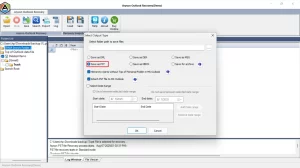
Steps to Fix Error 0x80040154 Using the Tool:
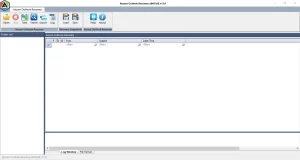
- Download and install the Outlook Recovery Tool.
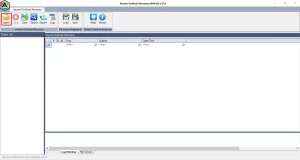
- Next, click Select File to load your corrupted PST or OST file.
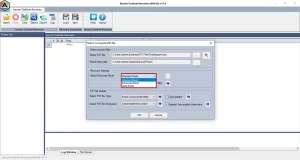
- Choose Quick Scan or Advanced Scan depending on the corruption level.
- Preview the recovered mailbox data.
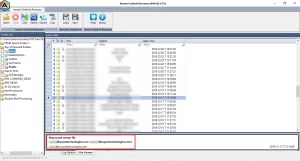
- Click Save Repaired File and select the desired location.
Additional Note: You can also fix SQL error 8942 and many other errors.
Conclusion
The Outlook Error 0x80040154 problem can interfere with your email experience by rendering Outlook unable to function properly. Missing registry entries, corrupt program files or corrupted Outlook files are common reasons why the 0x80040154 error could occur. Fixing problems through manual repairs can sometimes help. However, manual repairs for severe damage may not fix the problem. In those situations, using an Outlook recovery solution achieves all data recovery without data loss and minimal downtime.
Frequently Asked Questions:
Q.1 What is Outlook Error 0x80040154?
Ans. It’s a “Class not registered” error in Outlook, caused by missing registry components, corrupt DLL files, or a damaged Office installation.
Q.2 How do I fix Outlook Error 0x80040154?
Ans. You can fix it by re-registering DLL files, repairing Microsoft Office, creating a new Outlook profile, or using the Aryson Outlook Recovery Tool.
Q.3 Why does Outlook show error code 0x80040154?
Ans. Outlook displays this error when essential files or registry components are missing, or when interference occurs from faulty add-ins or antivirus programs.
Q.4 Can I fix the 0x80040154 error in Outlook without technical knowledge?
Ans. Yes, with the help of the Aryson Outlook Recovery Tool, users can fix the issue easily.
1. Download and install the Outlook Recovery Tool.
2. Next, click Select File to load your corrupted PST or OST file.
3. Choose Quick Scan or Advanced Scan depending on the corruption level.
4. Preview the recovered mailbox data.
5. Click Save Repaired File and select the desired location.
Q.5 What software can solve Error 0x80040154?
Ans. The Aryson Outlook Recovery Tool is the best software to fix Outlook Error 0x80040154 quickly and restore complete mailbox data.
About The Author:

Adom Smith is a DataRecoveryHelp Technology Writer. He is a technology enthusiast with over 3 years of experience in Data Recovery, IoT, Artificial Intelligence, and Robotics. He enjoys researching and sharing DIY solutions as well as tips and tricks for resolving Windows technical issues.
Realted Post


