

-
Written By Adom Smith
-
Updated on February 28th, 2026
Fix Outlook Error 500 Today – Simple Working Solutions
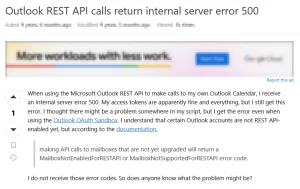
Summary: In the above query, the user is receiving Outlook Error 500 when he makes REST API calls, even though he is using the valid authentication & access tokens. This issue shows a common situation where Outlook services fail to respond correctly due to server-side issues, configuration conflicts, or account limitations. Outlook Error code 500 generally takes place due to a breakdown in communication between the client and Microsoft’s servers. In this blog, we will explain the causes of this error & provide you with some quick fixes to resolve this issue. In case nothing works for you, you can use the Aryson Outlook PST Repair Software discussed below.
Download Now Purchase Now
Download Now Purchase Now
Why does Outlook Causes error 500?
As it is said that understanding the root cause solves half of the problem, let’s discuss why the error 500 appears in the first place.
- There might be a temporary issue with Microsoft’s servers.
- This issue might occur due to the corrupted browser cache or cookies.
- Your login session might have expired, which causes authentication issues.
- Your Outlook profile might have been misconfigured.
- Outlook processes might have been blocked due to problematic add-ins or extensions.
- Issues with API permission or service configuration in Outlook.
Possible Fixes to Resolve the Outlook Error 500
Here, in this section of the blog, we will discuss various fixes to resolve the error 500. Try each of them one by one, and still nothing works for you, better opt for the recovery solution provided below.
Fix 1: Check the Status of the Microsoft Server
As we discussed above, there might be an issue with Microsoft 365 services, which eventually leads to the Outlook Error 500. In case the server is down or under maintenance, Outlook may not work properly and display this error.
Steps to check server status are as follows:
- Firstly, sign in to the admin.microsoft.com.
- After that, go to Health >> Service Health >> All Services.
- Check the status of Microsoft 365 services & wait for the issue to get resolved.
Note: Only global administrators can use these options.
Fix 2: Cross-Verify Your Email Attachments
If the error appears while sending an email, large-size or multiple attachments may be the cause of this error. You can reduce the size or quantity to identify & resolve the issue. You can also use the cloud storage links as a practical alternative.
Fix 3: Update Microsoft Outlook
If you are using an outdated version of Outlook, it can lead to compatibility issues, which can eventually trigger Error 500. Simply update your Outlook application to have the latest fixes and improvements.
Steps to update Outlook are listed below:
- To begin, Open Outlook & go to File >> click the Office Account option.
- After that, click on Update Options >> hit the Update Now button.
- Next, install the updates available & restart your device.
Fix 4: Remove Your Browser Cache & Cookies
Corrupted cache or cookies can interfere with the service communication. Once you clear them, all sign-in and loading errors related to Outlook Error 500 will be resolved.
Fix 5: Disable the Problematic Add-Ins
Sometimes, the incompatible add-ins may also disrupt the functionality of MS Outlook & cause Error 500. On removing these add-ins, you can resolve this error.
Steps to Find the Problematic Add-in:
- Press Windows + R shortcut key and type outlook.exe /safe >> press Enter.
- After that, go to File menu >> click on Options >> Add-ins >> Go.
- Then, disable all add-ins & restart Outlook.
- Next, enable add-ins one at a time to identify the faulty one & remove it.
Fix 6: Automated Recovery Solution to Resolve the Outlook Error 500
It is noticed a number of times that a corrupted PST file also prevents Outlook from properly reading mailbox data & settings. This breaks the synchronisation with Microsoft services and eventually triggers the Outlook Error Code 500 during email operations. Fixing these PST files can resolve this issue. Therefore, you can use the Aryson Outlook PST Repair Software to restore or recover your damaged PST files within a few seconds. This software also recovers your encrypted or password-protected PST files with the help of three different modes as on the level of corruption. Moreover, users can repair their oversized PST files using the same software. Also, users can repair PST files without using ScanPST.exe. Now, follow the steps below to recover your PST files.
Simplified Outlook Error 500 Troubleshooting Guide
- Firstly, download & install the Aryson Outlook Repair software on your system.
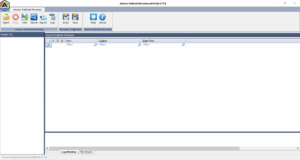
- After that, click on the Open option & add your corrupted PST files from your PC.
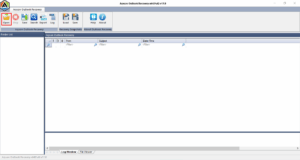
- Then, select the desired recovery mode- Standard, Advanced, or Deep Mode.
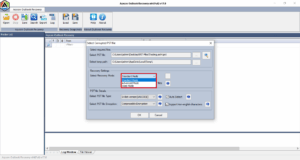
- Next, select the required details of the PST file & preview them with their properties.
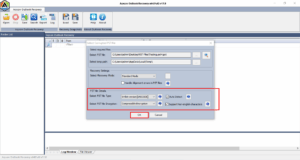
- Now, click on the Save button to save your data in a different format.
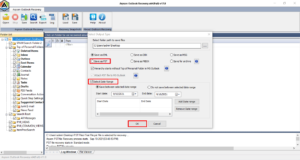
- Click on the Save as PST option & choose the Date filter if required.
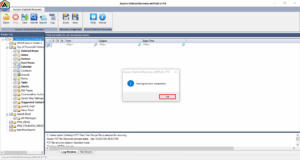
- At last, save your recovered PST file at a particular location.
Also Read: Learn How to Resolve SQL Orphaned Users Errors
Conclusion
In the above recovery guide, we learnt how to identify the Outlook Error 500 causes & resolve them with the help of various fixes. Along with that, we also discussed the automated recovery solution to repair the corrupted PST files, if any. With the help of various features of the software, even beginners can resolve this error effortlessly in a short time interval.
Frequently Asked Questions:
Q.1.Why does Outlook Error 500 occur?
Ans- “Outlook Error 500 Mailbox not found” error usually occurs due to server outages, corrupted cache or PST files, faulty add-ins, outdated Outlook versions, or authentication and configuration issues.
Q.2. Can browser cache cause Outlook Error 500?
Ans- Yes, corrupted or outdated browser cache and cookies can interfere with Outlook Web App, leading to Error 500.
Q.3. How do I fix Outlook Error 500 in Outlook Web App (OWA)?
Ans- Clear your browser cache and cookies, check Microsoft service status, disable browser extensions, and sign in again to OWA.
About The Author:

Adom Smith is a DataRecoveryHelp Technology Writer. He is a technology enthusiast with over 3 years of experience in Data Recovery, IoT, Artificial Intelligence, and Robotics. He enjoys researching and sharing DIY solutions as well as tips and tricks for resolving Windows technical issues.
Realted Post


