

-
Written By Adom Smith
-
Updated on March 2nd, 2026
How to Resolve Error 0x800ccc0f—Step-by-step full guide
Summary: Outlook users often encounter the 0x800ccc0f error while sending or receiving emails, which can interrupt regular communication. This issue usually appears when Outlook fails to maintain a proper connection with the mail server. There are several factors, such as corrupted Outlook PST files or configuration issues, that may cause this error. In this blog, we will outline the causes of error code 0x800ccc0f and provide a solution to resolve error 0x800ccc0f
Download Now Purchase Now
Download Now Purchase Now
About 0x800ccc0f Outlook 2013
When Microsoft Outlook unexpectedly loses its connection to the email server, Outlook Error 0x800ccc0f occurs during send or receive operations. Consequently, emails might be in the Outbox without being sent or not being received at all. This error is usually linked to network disconnection, wrong server configuration, large emails, or corrupted Outlook data files (PST). The first thing to understand about this error is to use the appropriate method.
Why Does the Outlook 0x800ccc0f Error Occur?
This error also occurs when the application is not able to establish a stable connection with the mail server. Let us look into the various reasons that lead to the error in the case of Outlook Error 0x800ccc0f.
- Corrupted PST Files: If the PST files of Outlook get corrupted, then the process of sending and receiving emails would be affected.
- Unstable Internet Connection: Short-term interruptions in the network during communication with the server might be one of the reasons.
- Blocking by Firewall or Antivirus: The security software might be controlling the access of Outlook to your email server.
- Incorrect Server Settings: An improper configuration of SMTP, POP, or IMAP can lead to failure in connection.
- Large Email Attachments: The emails with large attachments might not be sent; thus, the error is reported.
When you know these reasons, the root cause can be quickly identified, and the appropriate solution can be applied.
How to Resolve Error 0x800ccc0f Manually
Considering the above reasons behind this error, now we will discuss how to fix these issues for free.
1. Check Your Internet Connection
MS Outlook Error 0x800ccc0f occurs when there is an unstable or interrupted network connection, preventing interaction with the mail server.
How to check:
- The quickest method to check if your internet connection is working well is to load a website or use any other online service.
- Moreover, if your connection is very slow or you have frequent disconnections, you may want to reboot your modem or router.
- Another option for users is to change to another network to see if the problem was due to the first network or not.
2. Verify Incoming and Outgoing Mail Server Settings
Moreover, wrong POP, IMAP, or SMTP settings can make Outlook not send or receive emails. Now, we will discuss the steps for verification:
- First, you have to go to the Outlook account settings. Then, just check the server names for incoming and outgoing mail.
- Next, make sure that your provider’s configuration is followed regarding port numbers and encryption options.
- Finally, save the settings and run the account test to make sure that the server connection is working well.
3. Temporarily Disable Firewall or Antivirus Software
In some cases, security applications can unintentionally interfere with the connection of Microsoft Outlook to the mail server, which results in an error.
How to check:
- At this stage, deactivate your firewall or antivirus software.
- Make sure to open Outlook again and now see if you can send or receive an email.
- If so, add it to the security software’s exception list and activate protection once more.
4. Reduce the Size of Large Email Attachments
Sending large email attachments is risky, as it can result in the unintentional exceeding of the server limits. Thereby, it can fail Outlook during the sending process.
How to check:
- Check the size of the email attachments you are sending before sending.
- Resizing the large files or removing unnecessary attachments are some options available.
- Users can also use cloud sharing or try sending the email again for large files.
5. Repair Corrupted Outlook PST File
The Microsoft Outlook Error 0x800ccc0f may occur when operations are halted due to a corrupted or damaged PST file.
How to check:
- First, you have to close Outlook and then run the Inbox Repair Tool (ScanPST.exe).
- After that, you must select the corrupted PST file by navigating the folders on your computer.
- After that, you can run the scan and, if necessary, fix the issues that caused the error.
- Lastly, restart Outlook and see if you can send and receive emails once more.
6. Increase Server Timeout Settings
If Outlook times out while waiting for a response from the server, the error message will be displayed. Here are the steps to check:
- First, you go to the Outlook account settings and then select More Settings.
- Under the Advanced tab, lengthen the server timeout period.
- Once you’ve approved the changes, restart Outlook.
7. Disable Add-ins in Outlook
Defective or incompatible add-ons may stop the smooth operation of Outlook. Here are the steps to verify:
- You have to start Outlook in Safe Mode.
- Then, you need to disable all add-ins and then restart Outlook in the normal way.
- Begin re-enabling the add-ins, one at a time, till the one that’s causing problems is identified.
8. Update Outlook to the Latest Version
An outdated version of Outlook may be the reason mail servers take issue with its compatibility.
How to check:
- In Outlook, check the version by navigating to File and selecting Office Account.
- Click Update Options and select Update Now to get the updates.
- Once the update is done, restart Outlook.
When these steps are complete, you will resolve the error 0x800ccc0f and also enable smooth email communication again.
Automated Approach to Resolve Error 0x800ccc0f
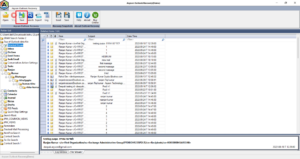
When a corrupt PST file is the root cause of Outlook error 0x800ccc0f, and the user is unable to fix it manually. The Aryson Outlook PST Repair Tool is one of the most recommended solutions for scanning corrupted PST files. It helps to recover emails, attachments, and other mailbox data. Thus, ensuring that the user’s Outlook is back in normal condition following the simple steps:
- Download and launch the Aryson Outlook PST Repair Tool on your system.
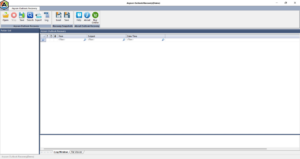
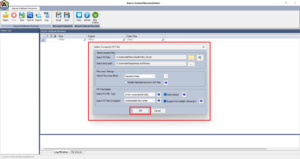
- Then, click on the open button to search for your PST file and select the recovery mode.
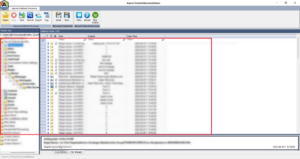
- Now, in the preview window, verify your recovered data.
- Lastly, choose the necessary file format by selecting the Save option.
Additional Features associated with this Software
- This tool can easily repair corrupted and inaccessible Outlook PST files.
- Also, this software helps to repair oversized PST files without any size limits.
- Users can apply a data filter for the selective restoration of a file from a corrupted PST file.
- You can also save Outlook recovered data as an archive file.
- Along with that, it provides three modes for recovering all kinds of corruption.
- Users can restore the Outlook mailbox data into new PST, EML, MBOX, and many other formats.
Conclusion
In this guide, we have discussed the reasons for Outlook Error 0x800ccc0f. You can use the different methods that are discussed above. If you know the root cause of this error, then you can use the methods accordingly. We have learned that manual approaches can resolve minor errors or configuration issues. But if you have a corrupt PST file, you can use the secure professional software. By applying the required solutions, you easily resolve error 0x800ccc0f. And you can restore uninterrupted email communication in Outlook without data loss.
Frequently Asked Questions:
Q.1. How can I resolve error 0x800ccc0f quickly?
Ans: You can easily fix this error by checking your internet connectivity, verifying your server settings, and temporarily disabling your antivirus. If the problem persists in your PST file, consider using the Aryson Outlook PST Repair Tool, a reliable solution.
Q.2. Does error 0x800ccc0f occur only in Microsoft Outlook?
Ans: Yes, error 0x800ccc0f primarily affects Microsoft Outlook and occurs during send or receive operations. It relates to Outlook’s connection with mail servers instead of other email clients.
Q.3. Will repairing PST files fix error 0x800ccc0f?
Ans: Yes, you can repair damaged PST files to resolve this error if corruption is the main cause. The Aryson Outlook PST Repair Tool safely repairs PST files and restores normal Outlook functionality.
About The Author:

Adom Smith is a DataRecoveryHelp Technology Writer. He is a technology enthusiast with over 3 years of experience in Data Recovery, IoT, Artificial Intelligence, and Robotics. He enjoys researching and sharing DIY solutions as well as tips and tricks for resolving Windows technical issues.
Realted Post


