-
Written By Adom Smith
-
Updated on February 27th, 2026
How to Resolve SQL Server 18456 Error Quickly
Summary: Are you facing the SQL Error 18456 and not able to access your database? This error in login stops users and applications from connecting to the SQL Server. As a result, your work may stop, applications may fail and all important tasks can be delayed. If the issue is not fixed on time, it can affect your daily operations. The good part is that in this blog we will discuss the different ways to resolve SQL Server 18456 error, including the MS SQL Recovery Tool for an easy fix.
Download Now Purchase Now
Download Now Purchase Now
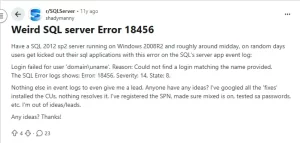
Why did the 18456 login fail for User?
There are some of the most common reasons behind the SQL Server 18456 login failed error:
- When an incorrect username or password is entered during login.
- Moreover, SQL Server authentication mode is not enabled properly.
- Subsequently, when your account is disabled or locked.
- The login does not have permission to access the database.
- Also, when the password has expired or must be changed before login.
Top Approaches to Fix SQL Server 18456 Error
There are several ways to resolve this error, but we will discuss the best two of them. Users can opt for the appropriate method that depends on their technical knowledge.
- Manual method using SQL Server settings in SSMS
- Automated SQL Server recovery tool
Approach 01: Manual Method to Resolve Microsoft SQL Server 18456 Error
If the process of login fails due to an incorrect authentication setting, then you can switch to Mixed Mode and enable the required login account for an easy fix.
Easy Steps to Fix Login Failed for SA 18456:
- Firstly, open SQL Server Management Studio (SSMS) & connect using Windows Authentication.
- After that, you have to right-click the server name and choose Properties.
- Under Security, choose SQL Server and Windows Authentication >> OK.
- Next, restart the SQL Server service to apply the required changes
- Then, go to Security >> Logins, right-click the sa account, >> Properties.
- Now, in the Status section, set the login to Enabled, then save the changes.
- At the end, you have to refresh the login and try signing in again to resolve 18456 SQL Server Authentication.
Drawbacks of the Manual Approach
- This approach requires technical knowledge of SQL Server settings.
- An incorrect configuration may create additional login issues.
- Moreover, restarting services can cause temporary downtime.
- Subsequently, it is not effective if the database file is corrupted.
- It is time-consuming, especially when troubleshooting multiple users.
Approach 02: Automated Method to Resolve SQL Server 18456 Error
SQL Database Recovery Tool provides a reliable way to repair SQL Server database files when issues such as Error 18456 occur due to corruption. If the MDF and NDF files are damaged, then this utility helps you to restore your database components safely without any complicated configuration. It helps you to recover your tables, indexes, and other important objects and preserves the database structure. You can fix SQL Database Error 601 with the help of the same utility.
Easy Steps to Fix SQL Server Error 18456:
- Firstly, you have to download and launch the SQL Database Recovery.
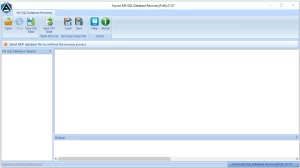
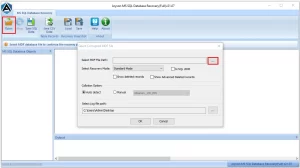
- After that, for repair, select & upload the damaged SQL database file (MDF).
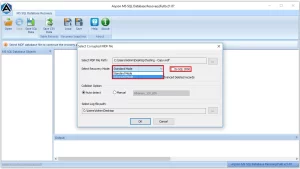
- Now, pick the appropriate recovery option and begin the process to scan.
- After the scan finishes, check the preview of restored tables and objects.
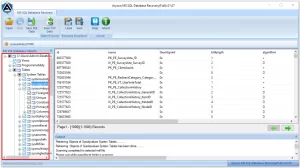
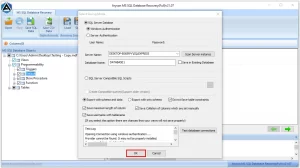
- Lastly, export the recovered data to a live SQL Server or save it as a script.
End Note
To sum up, we have discussed the different ways to fix SQL Server 18456 Error that can block access to your database. While the manual method can fix the authentication and login settings. In contrast, a professional solution is helpful to handle more complex database issues. By identifying the exact reasons for this error, you can apply the right approach and restore access without any kind of delay. If you need any kind of assistance, feel free to contact our support team.
Frequently Asked Question
Q.1 Why does SQL Server show “Login failed for user?
Ans: This happens when SQL Server cannot verify the login details due to wrong credentials, a disabled account, an incorrect authentication mode, or missing permissions.
Q.2 How do I fix 18456 Login Failed for User SA?
Ans: If the error is caused by database corruption, you can use a professional recovery tool to resolve it safely. Follow the given steps:
1. Install and launch the SQL Database Recovery Tool.
2. Add the affected MDF file to the software.
3. Select the appropriate scan mode and start scanning.
4. Preview the recovered database items.
5. Export the repaired data to a live SQL Server instance.
Q.3 What does ‘Microsoft SQL Server Error 18456’ mean?
Ans: It means SQL Server has denied access because it could not authenticate the user login.
Q.4 How do I enable SQL Server Authentication to avoid 18456 errors in future?
Ans: In SSMS, open Server Properties, select SQL Server and Windows Authentication mode, and restart the server.
Q.5 Can Windows Authentication cause error 18456?
Ans: Yes, if the server allows only Windows Authentication and you try SQL login, this error can appear.
About The Author:

Adom Smith is a DataRecoveryHelp Technology Writer. He is a technology enthusiast with over 3 years of experience in Data Recovery, IoT, Artificial Intelligence, and Robotics. He enjoys researching and sharing DIY solutions as well as tips and tricks for resolving Windows technical issues.
Realted Post