

-
Written By Adom Smith
-
Updated on February 5th, 2026
How to resolve Windows Update 0x80080005 on Windows 11/10
Summary: Are you facing the issue of Windows error code 0x80080005 while updating your system? In most cases, this issue can stop the update process and prevent Windows from installing the latest updates. This happens due to damaged system files or permission issues. In this blog, we will discuss why this error occurs and guide you through a simple procedure. Also, how Windows Data Recovery Software helps to resolve Windows Update 0x80080005 effectively. Download Now Purchase Now
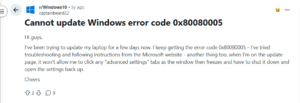
Reasons for Windows Update Error Code 0x80080005
First, you need to understand the causes of the error. You can fix this error quickly, and below are the most common reasons behind this error:
- Missing system permissions can stop Windows Update from working properly.
- Corrupted system files can interrupt the update installation process.
- Moreover, the Windows Update services may not run properly.
- Security software, such as antivirus software, can block update components.
- Also, internet connectivity problems can interrupt update downloads.
Manual Approach for 0x80080005 error code
Most of the Windows Update issues can be fixed manually. You can resolve this error if you follow the correct steps and adjust the Windows settings. This approach requires basic system access.
Method 01: Restart Required Update Services to Resolve Windows Update 0x80080005
- Firstly, you need to press Windows + R, type services.msc, and hit Enter.
- After that, locate Windows Update, BITS, and Cryptographic Services.
- Then, you need to right-click each service >> Restart.
- At the end, close the window and check for updates again.
Method 02: Use the Built-In Windows Update Troubleshooter
- Open Settings and go to Update & Security.
- Then, you need to click Troubleshoot >> Additional troubleshooters.
- After that, choose Windows Update and run the tool.
- Finally, let Windows apply fixes automatically and restart your system.
Method 03: Reset Windows Update Files Manually
- Simply open Command Prompt with administrator rights.
- After that, stop update services by entering these commands one by one:
- Then, you have to rename the update storage folders:
- Now, you have to restart the services:
- To complete the process, perform a system restart.
|
net stop wuauserv net stop cryptSvc net stop bits net stop msiserver |
|
ren C:\Windows\SoftwareDistribution SoftwareDistribution.old ren C:\Windows\System32\catroot2 catroot2.old |
|
net start wuauserv net start cryptSvc net start bits net start msiserver |
Method 04: Scan and Repair System Files for Windows 0x80080005
- As a first step, launch Command Prompt using admin rights.
- Then, simply run the given command:
- After that, you have to allow the scan to complete fully.
- Finally, you need to restart the system once the scan finishes.
|
sfc /scannow |
Method 05: Disable Antivirus Software Temporarily
- Most often, some security tools may block Windows Update.
- Users can turn off third-party antivirus software for a short time.
- Moreover, run Windows Update again and enable protection afterward.
Method 06: Confirm Administrator Permissions
- Make sure that you are signed in using an administrator account.
- Also, limited user access can prevent update services from running properly.
Drawbacks of the Manual Approach
The manual method can help you to fix this error; it is not always the easiest option for every user. Now we will discuss why users avoid opting for the manual approach:
- The process is time-consuming and may require multiple technical steps.
- Moreover, a small mistake in commands can cause further system issues.
- Manual fixes may not work if system files are deeply corrupted.
- Users require administrator access, which some users may not have.
This is why many users prefer automated solutions for a fast, error-free resolution.
Automated Approach to Resolve Windows Update 0x80080005
Windows Data Recovery is a reliable solution that helps to fix your Windows Update error 0x80080005. It repairs the system components that affect the update services. This utility checks the system files, corrects the update-related issues, and restores the damaged Windows elements. This approach helps to reduce the manual efforts and lowers the risk of system errors. Additionally, by using this utility, you can fix Windows Error 0xc00000e9, and you can try its trial version to explore the features of this tool.
Steps to Fix Windows Update Error 0x80080005 Using the Tool
- Firstly, download and open the Aryson Data Recovery Software.
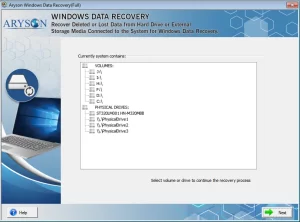
- After that, choose Volume or Physical Drive >> Next.
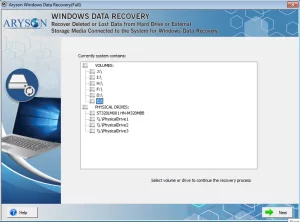
- Now, the volume information will be displayed >> Next, to proceed.
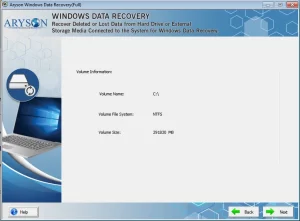
- Then, you need to pick the Recovery Mode and hit Next.
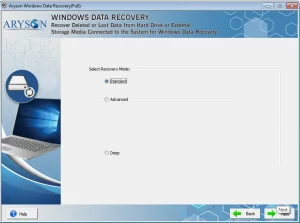
- After the process of syncing, you need to click on Next.
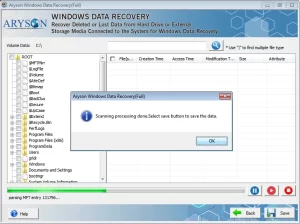
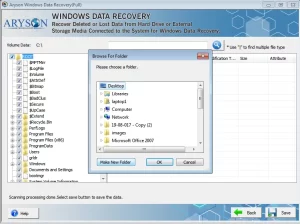
- Next, you need to select the destination path >> Save.
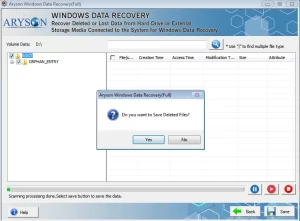
- After that, press Yes to save your deleted files.
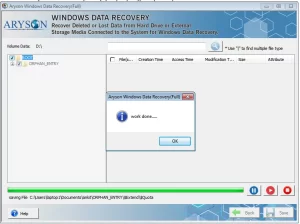
- Finally, your data is saved at the desired location. >> Ok to finish the process.
End Note
In this blog, we outlined the key methods to resolve Windows Update 0x80080005. In some basic cases, the manual approach can be beneficial, but it requires technical knowledge and careful system handling. On the other hand, to avoid any risks, you can opt for an automated approach, which helps to repair your update-related issues. So choose the appropriate approach from the given methods so that your system can stay stable and up-to-date without unnecessary complications.
Frequently Asked Question
Q.1. How do I fix Windows Update error 0x80080005 in Windows 11/10?
Ans: You can resolve error 0x80080005 by restarting Windows Update services, resetting update components, or using a professional solution like Windows Data Recovery Tool to fix update-related system issues safely.
Q.2. Does running the Windows Update Troubleshooter fix 0x80080005?
Ans: Yes, the Windows Update Troubleshooter can fix this error in some cases by detecting and correcting basic update service problems, but it may not work for deeper system-level issues.
Q.3. How to fix 0x80080005 using Command Prompt?
Ans: You can use Command Prompt to reset Windows Update components by stopping update services, renaming system folders, and restarting services with proper admin rights.
Q.4. Is 0x80080005 a common Windows Update error?
Ans: Yes, 0x80080005 is a frequently reported Windows Update error and usually appears due to permission issues, corrupted update files, or misconfigured system services.
About The Author:

Adom Smith is a DataRecoveryHelp Technology Writer. He is a technology enthusiast with over 3 years of experience in Data Recovery, IoT, Artificial Intelligence, and Robotics. He enjoys researching and sharing DIY solutions as well as tips and tricks for resolving Windows technical issues.
Realted Post


