

-
Written By Adom Smith
-
Updated on March 2nd, 2026
Fix SQL Error 3456: Causes, Fixes, and Troubleshooting Guide
Summary: If you utilize Microsoft SQL Server, you might have come across SQL Error 3456 while performing a database backup and restore. The error typically indicates that there is corruption between the database data files and transaction logs. Although the error seems technical, if you understand the root cause of the error and the appropriate steps for troubleshooting, this can be easily resolved. In this blog, we will discuss some of the reasons for SQL Server Error Code 3456. Additionally, learn how to manually repair the issue and an automated way to fix the error with the Aryson SQL Recovery Tool.
Download Now Purchase Now
Download Now Purchase Now
What does SQL Error 3456 mean in SQL Server?
SQL Error 3456 is another restore error that is reported by SQL Server whenever it has problems verifying or applying log records from a backup. You may see a message similar to the following:
|
“Could not redo log record for transaction ID, on page, database ‘DBName’ (database ID). Page information could not be verified against the log. Restore of database ‘DBName’ failed.” |
In layman’s terms, this error can simply be stated as SQL Server being relatively unable to reconcile the data in-between with the database pages and transaction logs. Until SQL Server can reconcile the data in between with the database pages and transaction logs, the restoration will be stopped, leaving your database incomplete or unplayable as a result.
Frequent Causes of Microsoft SQL Server Error 3456
Error 3456 can occur in SQL Server for many reasons. Recognizing the causes will help you choose the best solution.
- Corrupt or incomplete backup: If the backup (.bak) file is corrupted or incomplete, SQL Server may be unable to restore it. This can occur for a variety of reasons, often a result of hardware issues or an action interrupting the backup process.
- Inconsistent LSNs: If the log sequence numbers (LSNs) of the database do not match the log sequence numbers of the logs, SQL Server will struggle to process some transactions, which causes error 3456.
- Disk or hardware failure: Bad sectors on the storage drive may corrupt pages within your SQL database files. If this occurs, SQL Server will likely not be able to trust that log records can be validated.
- Manual file management: If you manually copied or replaced one of the MDF, NDF, or LDF files, database inconsistencies could occur if you did not properly detach the database first.
- Network or transfer interruptions: If your database backup was saved or stored on an unstable network, it is possible that the file was damaged during transfer. If so, your SQL Server will cause this error during restoration.
Signs of the SQL Server database 3456 issue.
When SQL error 3456 appears on your database, you may see some indicators that will help you confirm the error:
- The database recovery failed in the middle and shows the error message during verification.
- SQL Server shows the message “Could not verify page information.”
- Some tables or stored procedures become inaccessible.
- The database is in a Restoring or Recovery Pending state.
- SSMS logs have page corruption warnings.
- If you see any of these indicators, your backup or database file may be corrupted.
Procedures for Manually Correcting SQL Server Error 3456
There are some manual procedures that you can try first, prior to trying the software. Manual procedures will work well for minor corruption and will require some knowledge of SQL Server.
Approach 1: Validate the Backup File
Use the command below to determine whether or not your backup file is valid:
|
RESTORE VERIFYONLY FROM DISK = ‘C:\Backup\YourDatabase.bak’; |
If SQL Server indicates that the backup is invalid or not possible to read, you will have to restore from another healthy backup.
Approach 2: Use the NORECOVERY Option to Fix Error 3456 SQL Server
Targeted to restore multiple backups, the NORECOVERY must be used all the way to the final restore:
|
RESTORE DATABASE YourDB FROM DISK = ‘C:\Backup\YourDB_Full.bak’ WITH NORECOVERY; RESTORE LOG YourDB FROM DISK = ‘C:\Backup\YourDB_Log.trn’ WITH RECOVERY; |
This keeps the database in a state to allow for subsequent application of transaction logs so that mismatched restore order can be avoided.
Approach 3: Fix SQL Server DB 3456 issue via Checking Disk Health
The next thing you should do is a disk scan with Windows:
|
chkdsk C: /f /r |
This checks and repairs the disk for errors. If you see any bad sectors, move your database and backup files to a new, healthy drive.
Approach 4: Run DBCC CHECKDB to Resolve SQL Server Error Code 3456
- If the database opened partly, use the command below to detect corruption:
- If there is an issue, you can try to repair it:
- In cases of severe corruption and the absence of any other options:
- First, download and install the SQL Recovery Tool.
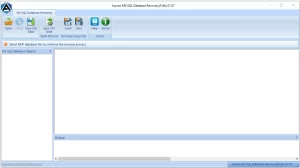
- Then, click to browse the damaged or healthy MDF file.
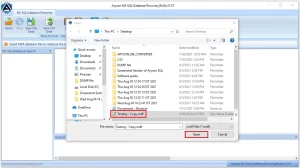
- After selecting the file, choose your level of file recovery mode accordingly.
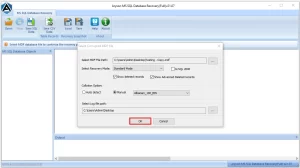
- Customize or adjust the recovery settings according to your preferences.
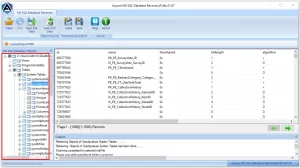
- It will scan the added SQL database file and find issues along.
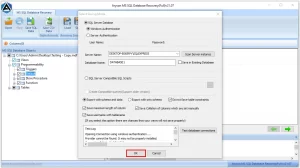
- After scanning, your last task will be to save the recovered files.
|
DBCC CHECKDB (‘YourDB’) WITH NO_INFOMSGS, ALL_ERRORMSGS; |
|
DBCC CHECKDB (‘YourDB’, REPAIR_REBUILD); |
|
DBCC CHECKDB (‘YourDB’, REPAIR_ALLOW_DATA_LOSS); |
Caution: always take a backup first. Repair commands may cause data loss.
Approach 5: Automated Method to Resolve SQL Server Database Issue 3456
The Aryson SQL Recovery tool is a professional and reliable tool that can recover damaged, corrupted, or inaccessible SQL databases without risk. Using this recovery Software, MDF and NDF files can be quickly restored without risking data quality. The professional algorithms in the software ensure all database objects are recovered quickly and accurately. There is no need to worry about complexity; the application has a user-friendly design. So it is easy for anyone with little technical ability to use the application. Along with error 3456, you can also fix SQL Server error 5171.
Easy Steps to Fix SQL Server Database Error 3456 :
Final remarks
SQL Error 3456 can happen for several reasons, usually due to corrupted backup files, log inconsistency, or hardware faults that are responsible for issues within the SQL server. Sometimes, corruption may require a professional to resolve these issues. The SQL Recovery Tool allows for professional recovery of MDF and NDF files when everything else has failed. Regularly verifying your backups for the future will reduce other SQL Server errors.
Frequently Asked Questions:
Q.1 What is SQL Error 3456 in SQL Server?
Ans: The SQL Error 3456 is encountered when the SQL Server database restoration fails to apply the log records, which indicates page corruption or a mismatch between data and log files.
Q.2 How do I fix SQL Server Error Code 3456?
Ans: To check and repair your databases, you may try the RESTORE VERIFYONLY and DBCC CHECKDB commands; however, if the error 3456 still can’t be fixed, you would need a reliable SQL database recovery solution like Aryson SQL Recovery Tool to perform a complete and safe repair of your database.
Q.3 Can SQL Server Database Error 3456 cause data loss?
Ans: Yes, in extreme cases, it can cause partial data loss. However, getting a professional SQL recovery solution helps to avoid the risks of data loss and assures complete data integrity.
Q.4 Can I recover my SQL Server database after Error 3456?
Ans: Yes, if you have backups that have been verified or if you have used Aryson SQL Recovery Software, you may be able to recover your SQL Server database, even after experiencing a higher level of damage.
About The Author:

Adom Smith is a DataRecoveryHelp Technology Writer. He is a technology enthusiast with over 3 years of experience in Data Recovery, IoT, Artificial Intelligence, and Robotics. He enjoys researching and sharing DIY solutions as well as tips and tricks for resolving Windows technical issues.
Realted Post


