

-
Written By Adom Smith
-
Updated on February 9th, 2026
Learn how to fix SQL Server Backup and Restore Database
Summary: Over 70% of businesses lose their important data every year due to system failure or cyber threats. For SQL Server users, even a small database issue can result in downtime and affect business operations. To avoid such kinds of risks, it is important to take regular backups and to follow the appropriate restore approach. In this blog, we will cover SQL Server backup and restore database techniques. And also explain how the SQL Database Recovery Software helps to recover your data when backups are not enough.
Download Now Purchase Now
Download Now Purchase Now
Types of SQL Server Backup
SQL Server provides different types of backups in order to protect data in different situations for SQL Server Backup and restore Database. Each backup option has its specific role and helps to restore your databases when data loss occurs.
1. Full Database Backup
A full backup helps to restore the complete database, which includes tables, objects, and system information. It acts as the main recovery point and is required before using the other backup types.
2. Differential Backup
A differential backup saves only the data that you have changed since the last full backup. It helps to reduce the storage space and speeds up the recovery when you combine it with a recent full backup.
3. Transaction Log Backup
This backup helps to capture all the database transactions that occur after the last log backup. This helps the users to restore their database to a specific point in time and is helpful for active databases.
4. Copy-Only Backup
A copy-only backup helps you to create an independent backup without changing the existing backup sequence. It helps the users when a temporary backup is needed for testing and auditing.
5. File and Filegroup Backup
This backup helps its users to back up their specific database file or file groups. It is useful for large databases where backing up everything is not required.
When and Why to Restore SQL Server Database from Backup?
Now, we will discuss the common reasons why users prefer to restore their SQL Server database from a backup:
- Accidental removal of important tables or database records.
- Database damage caused by system failure or application errors.
- Hard drive or server issues that make the database unavailable.
- Moreover, virus or ransomware attacks that affect database files.
- Users face problems after updates or incorrect database changes.
- When there is a need to return the database to an earlier working condition.
Therefore, restoring from a backup helps you to bring the database back to a safe and usable state quickly.
How to Backup and Restore Database in SQL Server Using Built-In Options
Microsoft offers the SQL Server Management Studio (SSMS) as a built-in utility that helps to back up and restore your SQL Server databases. By using this manual approach, users can safely create a backup and recover their databases.
How to Backup SQL Server Database Using SSMS
- To begin, open SQL Server Management Studio (SSMS) on your system.
- After that, in the Object Explorer, expand the Databases section.
- Then, you need to right-click on the database you want to back up.
- Next, you have to move to Tasks and pick Backup from the menu.
- Now, choose the correct location where the backup file should be saved.
- If needed, you can remove the existing path and add a new backup location.
- At the end, press OK to start and complete the backup process.
Guide to SQL Server Database Restore Through SSMS
- Once more, open SQL Server Management Studio (SSMS).
- After that, in Object Explorer, you have to right-click on Databases.
- Then, you need to select the Restore Database option.
- Now, choose Device and press the browse option to locate your backup file.
- After that, you have to click Add and select the required .bak file.
- Finally, confirm your selection >> OK to restore the database.
Limitations of the Manual Approach
Although the manual approach using the SSMS can be helpful in many cases but not always the best solution. Below, we have discussed some of the common limitations that users generally face:
- This method works only when the backup file is not damaged.
- It cannot restore data from corrupted or inaccessible .bak files.
- Moreover, the process may fail if SQL versions are incompatible.
- Manual steps increase the chance of human errors during restore.
- It does not support the selective recovery of specific tables or records.
Pro Tip: If theprocess of backup fails, a professional SQL recovery tool offers a faster and safer solution.
Automated Approach for SQL Server Backup and Restore Database
SQL Database Recovery Software is a reliable solution to fix corrupted SQL Server database files that cannot be restored by using the built-in options. It provides useful features such as dual recovery modes (standard and advanced) and a preview of your recoverable data. The software preserves database objects and their properties while handling both minor and major corruption issues. Along with this, you can also migrate SQL database to New Server.
Steps to Restore SQL Server Database:
- Install and open the SQL Database Recovery Software on your system.

- Then, from browse or search, you have to add a corrupt SQL database file.
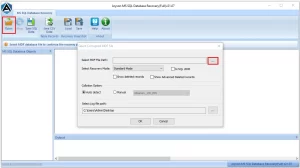
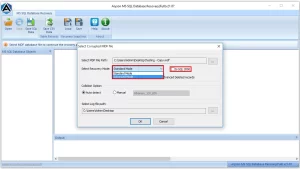
- After that, pick the appropriate recovery mode to scan your database.
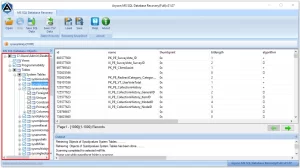
- Now, you can preview your recovered table and other SQL objects.
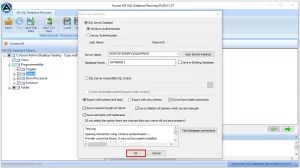
- Finally, save the recovered data to a live SQL Server or as SQL script.
End Note
In this blog, we explored manual and professional approaches for SQL Server Backup and Restore Database. While the manual approach is helpful for valid backup files, it may fail when the database is damaged, or the process can stop unexpectedly. Above discussed automated approach helps to recover your corrupted database files while keeping your data accuracy and structure intact. Users need to choose the appropriate approach based on their requirements and can make sure a secure database recovery and minimize downtime.
Frequently Asked Question
1. Can I restore SQL Server database to another server?
Ans: Yes, you can restore an SQL Server database on a different server using a backup file. If the backup file is damaged or incompatible, SQL Database Recovery Software helps recover and restore the database on another server without data loss.
2. What tools are used for SQL Server backup and restore?
Ans: SQL Server Management Studio (SSMS) is commonly used for backup and restore tasks. For corrupted or inaccessible backup files, a professional SQL Database Recovery Software provides a safer and more reliable recovery option.
3. Why does my SQL Server backup fail with permission errors?
Ans: Permission errors usually occur due to insufficient access rights on the backup location or SQL services. When backups fail repeatedly, SQL Database Recovery Software extracts database data without depending on backup permissions.
About The Author:

Adom Smith is a DataRecoveryHelp Technology Writer. He is a technology enthusiast with over 3 years of experience in Data Recovery, IoT, Artificial Intelligence, and Robotics. He enjoys researching and sharing DIY solutions as well as tips and tricks for resolving Windows technical issues.
Realted Post


