-
Written By Adom Smith
-
Updated on March 2nd, 2026
SQL Server Log 9002: Transaction Log for Database is Full
Summary: You might run into SQL error log 9002 while working in SQL Server. It usually shows up when the transaction log fills up. Once that happens, the database blocks new changes until the issue is resolved. This problem is commonly seen in databases like MSDB and can interrupt tasks like backups or scheduled jobs. To deal with this efficiently and without data loss, many professionals turn to reliable solutions like SQL Recovery Tool, which can restore data even when the log file is full or corrupted. In this blog, you will discover the common causes of Error 9002 and a step-by-step solution to prevent the issue in the future. Download Now Purchase Now
What Causes SQL Server Error 9002?
This error usually shows up when the transaction log can’t grow any further. A few common reasons include not enough space on the drive, the log file reaching its set size limit, or backup jobs not running as scheduled. Sometimes, these issues come up if the database is using the full or bulk data recovery model and log backups haven’t been done in a while.
How to Fix SQL Error log 9002
Running into this error while working in SQL Server isn’t unusual. The upside is it’s typically something you can fix without too much effort. Based on what’s causing the issue, there are a few ways to get things back on track.
1. Save a Backup of the Log File
If your database is using the full or bulk-logged recovery mode, the log file doesn’t clear itself. Over time, it can get full if regular log backups aren’t taken. You can fix this by backing up the log using the command below:
BACKUP LOG [YourDatabaseName] TO DISK = 'D:\Backup\YourDB_Log.trn'; |
If this hasn’t been done in a while, the log might fill up. You can free up space by saving a log backup like this. After the backup, space in the log becomes available again for new transactions.
2. Clear Up Storage on the Drive
The log might not be able to grow just because there isn’t enough room on the drive. Take a quick look at the disk where your log file is saved. If it’s running low, try removing some unnecessary stuff or shifting files to another location. Next, SQL Server can continue without any issues.
3. Give the Log File Some Extra Room
If your log file has hit its max size, SQL Server won’t be able to keep writing to it. You’ve got two options: either let it grow automatically or bump up the size yourself. To do it manually, run a command like this
ALTER DATABASE [YourDatabaseName] |
Making that adjustment gives SQL the space it needs to keep doing its job without running into space issues.
4. Shrink the Log File (If You’re Still Low on Space)
Even after taking a backup, the log file will still be occupying more space than necessary. If your drive is almost full and you need to reclaim some memory quickly, you can try shrinking the file. Just a heads-up: this should be a last resort, not something you rely on regularly, since doing it too often can cause performance hiccups.
DBCC SHRINKFILE (YourDB_Log, 100); |
Why should we consider using an SQL Recovery Tool?
If none of the usual fixes work or if your database files are damaged, then SQL Recovery Tool is the way to fix SQL Error Log 9002. It’s a practical way to handle things when the log file is gone, or the system just won’t cooperate. Tools like this are built to recover .mdf and .ndf files safely, without needing you to search into complex scripts or risk losing data.
Also Read: Open MS SQL Server Backup BAK File
Learn How to Fix Your SQL Server Database in a Few Steps
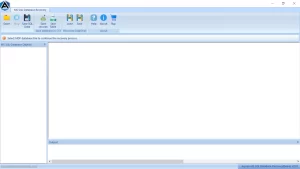
- Install and run the MS SQL Recovery Tool>> Open button to add the .mdf or .ndf file.
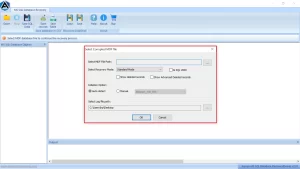
- After that, select the recovery mode: Advanced or Standard.
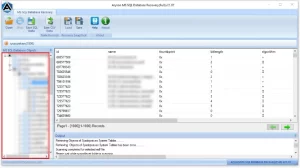
- Now, you can view the MDF files in a tree structure format. Select the desired file.
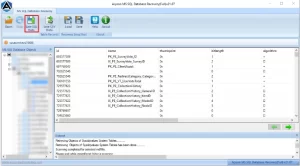
- Finally, click on the Save SQL Data button to save the recovered .mdf or .ndf files to the desired location on your system.
Conclusion
Having an SQL Error log 9002 isn’t the end of the world. Most of the time, it just means your log file needs some attention. It can be about freeing up space, adjusting the recovery model, or adjusting the file size settings. In many cases, these fixes are enough to get things moving again, but if things still aren’t working or the files are corrupted, having a solid recovery tool in your corner can really make a difference. It’s a good fallback when you’re short on time or can’t afford to risk important data.
Also Read: Repair Corrupted SQL Server Transaction Log File.
Frequently Asked Questions:
Q1. How do I fix SQL error log 9002 in SQL Server?
Ans. Use the Aryson recovery tool. Here are the steps:
Download and install the MS SQL Database Recovery Software.
Then, launch the tool and click on the “Browse” button to add the MDF file.
Next, select the desired Recovery Mode to begin scanning your .mdf file.
After that, click on the OK button to initiate the scanning process.
Click on the scanned MDF file to preview the recovered database items.
Now, enter your SQL Server login credentials and verify the database connectivity.
Finally, click OK and choose a destination path to save the recovered SQL data.
Q2. What if the log file is full in SQL Server?
Ans. If the log file is full in SQL Server, you can resolve it by freeing up disk space, backing up the transaction log, increasing log file size, or switching to the simple recovery model temporarily.
About The Author:

Adom Smith is a DataRecoveryHelp Technology Writer. He is a technology enthusiast with over 3 years of experience in Data Recovery, IoT, Artificial Intelligence, and Robotics. He enjoys researching and sharing DIY solutions as well as tips and tricks for resolving Windows technical issues.
Realted Post