

-
Written By Adom Smith
-
Updated on March 2nd, 2026
Quick Fix: Windows Error Code 0x80070005 Solution
Summary:When users come across an error while working on Windows. One of the most common errors is Windows Error Code 0x80070005. It usually occurs when you try to install a new update on your device or when you run Microsoft Office. If the error is not fixed, this error can prevent the system from updating and can cause security risks. In this technical post, we will explain what this error really is, why it happens, and how you can fix the error with a recommended utility like Aryson Windows Data Recovery Software without much hassle.
Download Now Purchase Now
What is Windows Error 0x80070005?
Error code 0x80070005 indicates that Windows is unable to access the files. In most cases, this is a permissions-related problem, where the system doesn’t have the rights to execute a task.
A user might encounter this error in situations such as
- While installing Windows updates.
- When trying to activate Microsoft Office.
- During software installation or program execution.
Common Causes of Error Code 0x80070005
Several reasons can trigger this error, including:
- User account may not have admin rights.
- Damaged system files can block updates.
- Security programs may restrict access to essential files.
- Malicious software can alter permissions.
- Leading to activation or update issues.
Top Solutions to Fix Windows Error 0x80070005
Here are some effective solutions to resolve this issue:
Solution 1: Use and Run Windows Update Troubleshooter
- Firstly, go to Settings, then select Update & Security
- Now, from the Troubleshoot and then in the Additional troubleshooters, select Windows Update, and run it to detect and resolve common problems quickly.
Solution 2: Check User Permissions
Log in with an administrator account to avoid restrictions. If issues persist, right-click the application and choose Run as administrator for proper access
Solution 3: Scan for Malware and Viruses
Run a full system scan with Windows Security or a trusted antivirus to eliminate malware causing permission issues.
Solution 4: Disable or Reconfigure Antivirus Software
Some of the antivirus programs that are installed in the system can mistakenly block system operations. Temporarily disable them or add Windows Update.
Solution 5: Use System File Checker (SFC)
- When the file is corrupted, it can also trigger error code 0x80070005.
- The following commands can fix the error:
- Open Command Prompt as administrator.
- Type: sfc /scannow and press Enter.
Solution 6: Repair or Reinstall Microsoft Office
When the error occurs during Office activation, you have to follow the steps given below:
- First, navigate to the Control Panel and select Programs.
- From the Programs, you have to select a program and its Features.
- Select Microsoft Office, and choose Change > Repair.
Note: If that doesn’t work, uninstall and reinstall Office.
Related Guide: Outlook Error 0x8004010F
Solution 7: Easy and Seamless Windows Error Code 0x80070005
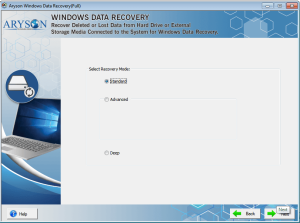
The Aryson Windows Data Recovery Software is one of the best and most reliable solution. It helps you to restore deleted, lost, or inaccessible data, including HDD, SSD, USB, memory cards, and more. This tool supports NTFS, FAT, HFS, RAW, and EXTX file systems. Offers several Recovery Modes, like Standard, Advanced, and Deep modes, for 100% accurate recovery. Also, you can try the free version of this tool to understand its features and functions.
Steps to Recover Data with Aryson Windows Data Recovery Software
- Firstly, install and launch Aryson Data Recovery Software on your system.
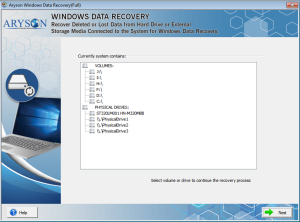
- Select the disk drive or physical drive and click Next.
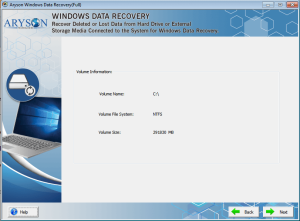
- One of the Recovery modes can be applied for scanning the drive.
- When the scanning is done, tap ok to preview the recovered files.
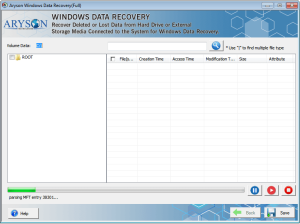
- Click Save and define a location to store the recovered data.
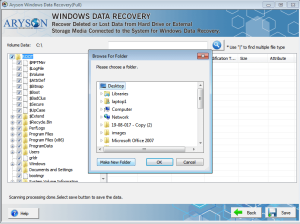
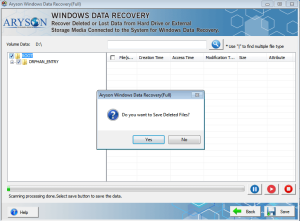
- Finally, click Yes to Resolve Error Code 0x80070005 in Windows.
Final Thoughts
The Windows Error Code 0x80070005 can be very complex, but with the above-given solution, you can fix it quickly. When the error occurs during updates for Windows or Office on your pc. With proper troubleshooting, these errors can be avoided and fixed. Using a reliable recovery tool ensures zero data loss and smooth system performance.
Frequently Asked Questions:
Q.1 What does error code 0x80070005 mean?
It means Windows or a program does not have the required permissions to perform a task. It’s often related to updates, installations, or activation.
Q.2 Why do I get error 0x80070005 during Windows Update?
This usually happens due to insufficient permissions, corrupt update components, or antivirus interference.
Q.3 I get error 0x80070005 when activating Microsoft Office. How can I fix it?
You should repair or reinstall Office, ensure your account has admin rights, and check that antivirus programs are not blocking activation.
About The Author:

Adom Smith is a DataRecoveryHelp Technology Writer. He is a technology enthusiast with over 3 years of experience in Data Recovery, IoT, Artificial Intelligence, and Robotics. He enjoys researching and sharing DIY solutions as well as tips and tricks for resolving Windows technical issues.
Realted Post


