

-
Written By Adom Smith
-
Updated on March 2nd, 2026
How to Fix Windows Error 0xc00000e9 Now—Simple Steps
Summary: Are you facing the issue to start your PC properly and want a reliable way to fix Windows Error 0xc00000e9? This error can suddenly stop your system from starting, and there is a high chance of data loss. In this blog, we will discuss the effective ways to resolve this issue, along with the support of Aryson Windows Data Recovery Software. Now, walk through the procedure to protect your important files and the common reasons behind it.
Download Now Purchase Now
Download Now Purchase Now

Reasons Behind Windows Error Code 0xc00000e9
This issue may occur due to various reasons, and below we have listed the most common ones:
- When there are loose or unstable connections between the hard drive.
- There are damaged system files that interrupt the normal startup process.
- Moreover, disk errors or bad sectors affect file access.
- When there are sudden power cuts or improper system shutdowns.
- There are virus or malware attacks that disturb the system’s boot files.
- Old or faulty device drivers create system conflicts.
Manual Methods to Fix 0xc00000e9 Error
Now, you must have understood the common reasons behind this error. Let’s move ahead to the manual solutions. These methods are simple, cost-free, and can be followed easily to fix the problem.
1. Check Hardware Connections
- Firstly, you have to shut down your computer completely.
- Disconnect all external devices, including USB drives and external hard disks.
- After that, reconnect the hard drive cables and other devices securely.
- At last, power on your system and check if the error is resolved.
2. Run Windows Startup Repair to Fix Windows 0xc00000e9 Error Code
- Restart your computer and wait for the Windows recovery screen to appear.
- After that, choose Troubleshoot from the available options.
- Then, you have to click on Advanced Options to open more repair tools.
- Now, select Startup Repair and confirm your choice.
- At the end, let Windows scan and fix startup issues >> restart your system.
3. Repair Your System Files Using SFC
- Firstly, you need to open Command Prompt with admin rights.
- After that, enter sfc /scannow and press Enter.
- Now, let Windows scan your system and fix corrupted files.
- At the end, you have to restart your computer after the scan finishes.
4. Check BIOS settings in your system.
- Restart your computer and press the key ( F2, Del, or Esc) to access BIOS.
- After that, go to the Boot or Startup options.
- Then, you have to set the correct hard drive as the primary boot device.
- Now, you have to save the changes and exit the BIOS.
- Finally, restart your system and check if the error is resolved.
Cons of using a manual approach:
- You will notice it is time-consuming, as there are multiple steps.
- Users should have technical knowledge, which may be difficult for beginners.
- This approach cannot fix the complex issues, such as the corrupted files.
- There is a high chance of data loss if steps are not followed carefully.
- Moreover, hardware problems cannot always be resolved manually.
Professional Approach To Fix Windows Error 0xc00000e9
Windows Data Recovery Software is a reliable utility to recover your lost or inaccessible files, especially when the error 0xc00000e9 stops your system from booting. It protects your important data by detecting and restoring your corrupted or missing files. Also, it supports recovery from formatted or damaged drives & before the proces sof restore you can preview your files. Now, we will go through the easy steps to protect your data and resolve this issue efficiently:
Simple Procedure to Fix Boot Error 0xc00000e9:
- To get started, download and launch the Windows Data Recovery.
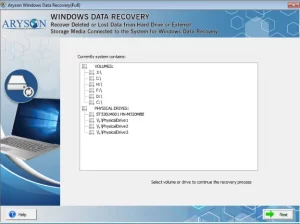
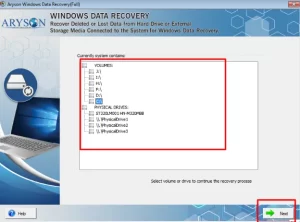
- After that, choose Volume or Physical Drive and press Next.
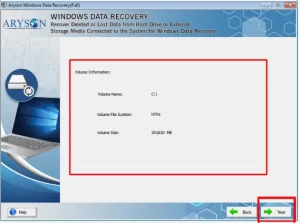
- Then, the panel of volume information will be displayed >> Next.
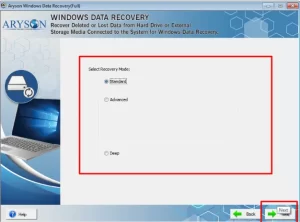
- Now, choose the Recovery Mode and hit the Next button.
- After the completion of the syncing process, hit the OK button.
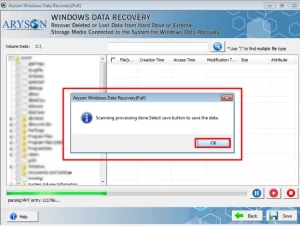
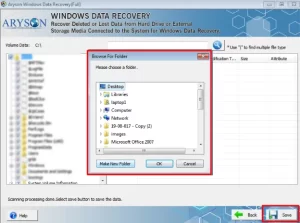
- Then, you can choose the destination to save your recovered data >> Save.
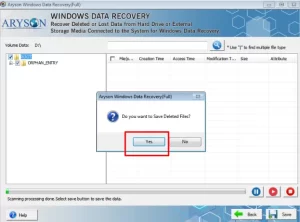
- Now, to save your deleted files, press the Yes button.
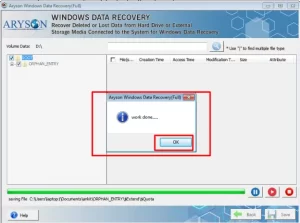
- Finally, your data will be saved at the required location >> OK.
Final Remarks
In this blog, we walked through the reasons behind this error and various approaches to fix Windows Error 0xc00000e9. You may choose the cost-free manual approach for minor issues or use the automated approach for a more secure solution. The process can be completed without any data loss. By choosing the right approach, you can save your time and reduce errors. If you face any problem while solving this issue, our support team is always ready to recover & repair your data.
Frequently Asked Question
Q.1. How do I fix error 0xc00000e9 in Windows 10?
Ans: You can fix this error by checking hardware connections, running Startup Repair, scanning the disk for errors, and repairing corrupted system files. If the issue still continues, using a reliable recovery solution can help protect your data before applying advanced fixes.
Steps to follow:
1. Download and open Windows Data Recovery Software.
2. Choose Volume or Physical Drive → Next.
3. Select Recovery Mode → Next.
4. Scan and preview the files.
5. Save the recovered data to a safe location.
Q.2. Can a hard drive cause error 0xc00000e9?
Ans: Yes, a faulty or damaged hard drive can trigger this error. Issues like bad sectors, loose cables, or file system corruption often interrupt the boot process and lead to error 0xc00000e9. Checking disk health and connections usually helps resolve this problem.
Q.3. Can external devices cause Windows error 0xc00000e9?
Ans: Yes, connected external devices such as USB drives, external hard disks, or memory cards can sometimes interfere with system startup. Disconnecting all external devices and restarting the system can help identify and fix the issue.
Q.4. Is error 0xc00000e9 a hardware or software issue?
Ans: Yes, connected external devices such as USB drives, external hard disks, or memory cards can sometimes interfere with system startup. Disconnecting all external devices and restarting the system can help identify and fix the issue.
About The Author:

Adom Smith is a DataRecoveryHelp Technology Writer. He is a technology enthusiast with over 3 years of experience in Data Recovery, IoT, Artificial Intelligence, and Robotics. He enjoys researching and sharing DIY solutions as well as tips and tricks for resolving Windows technical issues.
Realted Post


