

-
Written By Adom Smith
-
Updated on February 28th, 2026
How to Fix Hard Drive Error Code 0146: Quick Solutions
Overview : Use of Digital Devices has become an inseparable part of our lives today. As a result, it has become a common issue to face Hard Drive Error Code 0146 among Dell users. This is a boot-time error that indicates that there is something wrong with your system’s hard drive. It might trigger the slowdown, freezing, or failure in app loading. This article will guide you on fixing this error with a set of quick fixes. Along with that, it will explain the use of Aryson Windows Data Recovery software to recover your important data during any Windows-related errors.
Download Now Purchase Now
Download Now Purchase Now
What is Hard Drive Error Code 2000-0146?
It is a Dell diagnostic error that indicates issues or corruption with the hard drive.
This error appears when your Dell laptop boots & the system detects a faulty or unreadable disk sector. Given below are the reasons behind the occurrence of this error.
Root Causes of Error Code 0146
- This issue might occur due to the damaged sectors on the hard drive.
- Your system files might be corrupted, or the OS has some issues.
- The error might have been triggered due to the aging hard drive hardware.
- Even improper system handling or sudden shutdowns can cause this error.
- Also, the disk performance is affected by malware or virus infection.
Quick Fixes to Resolve Hard Drive Error Code 0146
There are a number of fixes available to resolve the Error Code 0146. In this section of the blog, we will discuss the most impactful fixes. Go through each fix carefully to successfully resolve the issue. Still, if nothing works, you can use the provided recovery solution to recover your Windows data.
Fix 1: Running of Dell Onboard Diagnostics
- Firstly, restart your Dell device.
- Then, simply press the F12 key repeatedly at the Dell logo.
- Open the Boot Menu >> choose Diagnostics option.
- After that, the test will run automatically & might take some time.
- Now, you have to note the shown error code, validation code, & service tag.
Fix 2: Start the Scan for Viruses or Malware
- Firstly, you have to update the previously installed antivirus tool.
- Or you may install a reliable antivirus software.
- Then, scan your complete system, preferably before Windows loads.
- In case you find any malware or corrupted file >> remove it
Fix 3: Use Safe Mode & Perform a Clean Boot
- Disconnect all external devices.
- Restart your system and press F8 to open Advanced Boot Options.
- Choose Safe Mode with Networking.
- Now, press the Windows + R key >> type msconfig >> hit OK.
- Select Selective Startup and uncheck Load Startup Items.
- Go to Services, enable Hide all Microsoft services, then click Disable All.
- Restart your PC and check if Error 0146 is resolved.
Additional Note: It becomes essential to use a reliable solution when you deal with the Error Code 0146 Code 2000-0146, especially when the hard disk shows signs of corruption. A prominent data recovery software can help you retrieve all your important files before the drive fails.
Fix 4: Recover your Windows Data
In case, none of the above methods work, you can recover your important data using the Aryson Windows data recovery software. This software will help you restore your data wihout compromising on the intergirty and security. Moreover, it maintians the file structure & formatting. Additionally, it offers compatibility with a wide range of storage devices like hard drives, SSDs, USBs, SD cards, & external media. Additionally, it provides the user with different recovery modes depending on the level of corruption. Now, follow the steps below to recover your required data.
Step-by-Step Tutorial to Recover Data When Facing Hard Drive Error Code 0146
- Install the Aryson Windows Data Recovery Tool >> open it on your system.
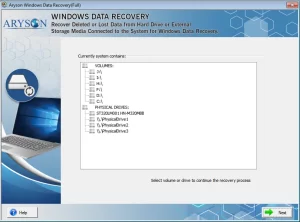
- Then, select the corrupted drive that is displaying Error 0146 >> click Next.
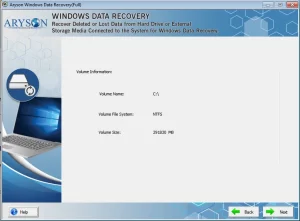
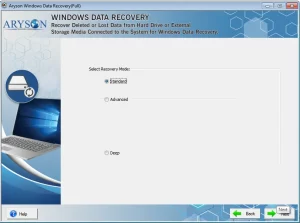
- After that, choose the most suitable recovery mode, such as Standard, Advanced, or Deep Scan, based on the level of corruption.
- Next, review the scanned files >> select the files you want to restore >> click Save.
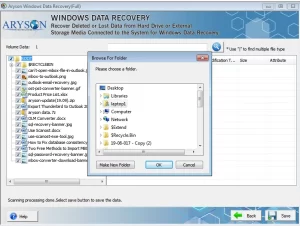
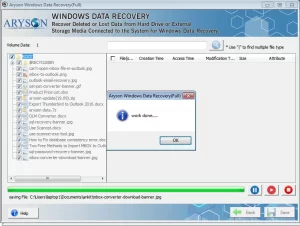
- Then, specify a location in your local system to save your recovered data.
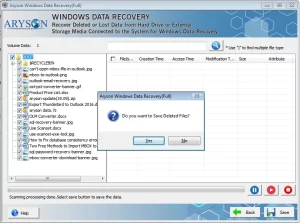
- At last, click the OK button to finish the conversion process.
Also Read: Know how to fix Error Code 0142
Conclusion
In this blog, we discussed how important it is to resolve the Hard Drive Error Code 0146, & provided various ways to fix it. You may run the Dell Onboard Diagnostics, scan for viruses or malware, or use Safe Mode to perform a Clean Boot. In case nothing works for you, you can recover your Windows data before the drive completely fails. For that, the user should opt for the Aryson Windows Data Recovery Software. Still, if you have any queries, contact the tech support team.
Frequently Asked Questions:
Q.1. How to fix hard drive error code 0146?
Ans- You can try running Dell Onboard Diagnostics, scanning the system for malware, or using Safe Mode to perform a Clean Boot. If none of these methods work, recover your important data before the hard drive fails, using the above recovery software.
Q.2. Is Error Code 2000-0146 fixable?
Ans- Yes, Dell Error Code 2000-0146 can often be fixed using diagnostics, bad sector repair, malware removal, or a Clean Boot; however, if the hard drive is badly failing, you may need to replace it.
Q.3. How long can I use my laptop after Error Code 0146 appears?
Ans- It’s unpredictable; the drive may work for a short while or fail at any time, so it’s best to back up or recover your data immediately.
About The Author:

Adom Smith is a DataRecoveryHelp Technology Writer. He is a technology enthusiast with over 3 years of experience in Data Recovery, IoT, Artificial Intelligence, and Robotics. He enjoys researching and sharing DIY solutions as well as tips and tricks for resolving Windows technical issues.
Realted Post


