

-
Written By Adom Smith
-
Updated on February 28th, 2026
Fix Outlook Error 0x800ccc13 – Quick & Easy Solutions

User query: I use Outlook 2019 for work, and today I received an error message 0x800ccc13 saying it cannot connect to the network. I tried running Outlook in Safe Mode and also disabled all add-ins, but the problem still continues. It might be possible that there is a corruption in my PST file, so suggest a solution for it also.
Summary: Microsoft Outlook is a trusted email client for both businesses and individuals. One such error is the Outlook Error 0x800ccc13, which can appear when a user tries sending or receiving emails. If you are getting these messages, like “Outlook Error 0x800ccc13: Cannot connect to the network,” you are at the right place. In this guide, we’ll explain the causes with the built-in solutions and direct solutions to recover the PST file using Aryson Outlook PST Repair Tool. It can resolve the issue with minimum downtime and zero chances of data loss.
Download Now Purchase Now
Download Now Purchase Now
What is Outlook Error 0x800ccc13?
When Outlook is not correctly connected to the mail server, the Outlook error code 0x800ccc13 pops up on the screen. Although in most cases receiving emails may still function, it may cause problems for users when sending emails. There are several reasons for this error, like corrupted Outlook data files, out-of-date updates, system file faults, or network issues, which are frequently associated with this problem.
Causes of Outlook Error 0x800ccc13
The Outlook Error 0x800ccc13 can occur due to various common reasons.
- Outlook PST/OST files can be damaged or corrupted due to the most common causes. Outlook emails, contacts, and calendar entries can all be stored in these folders.
- Outlook may not be able to send or receive emails if they are corrupted. The reasons could be: unexpected shutdowns, system failures, or large files.
- Another reason is incomplete or faulty Outlook or Windows updates. Updates are supposed to enhance performance and security.
- Corrupted Windows system files are another factor. Important files that help Outlook run properly can get damaged due to malware, crashes, or other issues.
- Incorrect extensions can cause problems in Outlook’s operation. Some add-ins might create problems with receiving and sending emails, resulting in a network connectivity error.
- Also, after updates, incorrect values in the registry might have the same impact. Registry entries store crucial configuration information for both Windows and Outlook.
- If an update changes these entries incorrectly, Outlook might fail to connect to the network.
How to fix Outlook error 0x800ccc13
Outlook Error 0x800ccc13 can be resolved by fixing PST files, deleting trapped emails, updating Outlook, disabling troublesome add-ins, and scanning for corrupted system files. A professional solution like Aryson Outlook PST Repair solution can swiftly restore your mailbox and resolve the issue without erasing any data if the PST corruption is severe.
Solution 1: Resolve Outlook 0x800CCC13 error by using the Windows System File Checker (SFC)
-
- Windows System File Checker helps repair corrupted system files that might be interfering with Outlook.
- Start by Closing your Microsoft Outlook.
- Navigate to Start and search for Command Prompt.
- Right-click and choose Run as administrator.
- Type the command:
- After that, press Enter and wait for the process to finish.
- Restart your computer and see if you can open MS Outlook again.
sfc /scannow 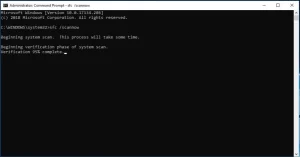
Solution 2: Check for Stuck Emails to Fix Outlook Send/Receive Error 0x800CCC13
When an email is unsent or gets stuck in the Outbox, it can also cause the Outlook 0x800ccc13 error.
- To begin with, open the Outbox folder on your PC.
- Look for the unsent or stuck emails and delete them.
- Restart Outlook and try sending a fresh email.
Why do emails get stuck?
- A weak Internet connection can make Outlook go offline.
- Add-ins are interfering with sending.
- Incorrect server settings.
- When there are very Large attachments.
- Antivirus scanning outgoing emails.
Solution 3: Update Microsoft Outlook
Outlook updates often contain fixes for known issues, including send/receive errors.
- Start by opening Microsoft Word.
- After that, navigate to File, then Account, then Product Information.
- Click Update Options > Update Now.
- Finally, install the latest updates and restart Outloon.
Solution 4: To fix the Outlook 0x800ccc13 error, check the Registry Values
-
- Sometimes, incorrect registry entries cause the error message 0x800ccc13.
- Press Windows + R, type regedit, and hit Enter.
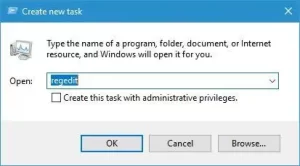
- Navigate to:
- Look for any faulty Outlook-related entries.
- Delete them if necessary.
- Restart your PC and recheck Outlook.
HKEY_LOCAL_MACHINE\Microsoft\Windows\CurrentVersion\Run Solution 5: Start Safe Mode of Outlook
Sometimes Outlook’s Safe Mode can disable add-ins
-
- Firstly, open your computer and Press Windows + R.
- Type:
- Press Enter.
- Try sending/receiving emails again.
- If it works fine in Safe Mode, remove the faulty add-in from:
- File > Options > Add-ins > Manage COM Add-ins > Go.
outlook.exe /safe Solution 6: Disable Faulty Outlook Add-ins
- Some add-ins can interfere with Outlook’s send/receive process.
- First, open MS Outlook on your system.
- After that, navigate to File > select Options > Add-ins.
- At the bottom, choose Manage COM Add-ins and click on Go.
- Uncheck unnecessary add-ins and restart Outlook.
Solution 7: Repair the PST File Outlook Error 0x800ccc13
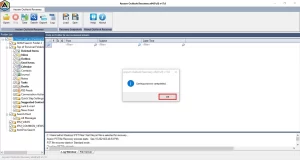
The Aryson Outlook PST Repair Tool will take care of the damaged PST files in Outlook. This utility can quickly recover your emails with attachments. It can work with any version of Outlook for both Windows and Mac, and can handle large files. The user can get a quick solution for Outlook and fix errors like Outlook Error 0x800ccc13 without losing any important data.
Steps to Use the Tool:
- Download and install the Aryson Outlook Repair Tool.
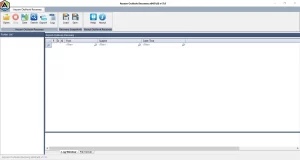
- Click on Open and choose a corrupt PST file from your PC.
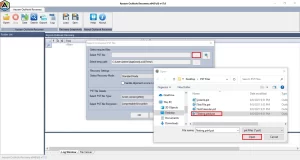
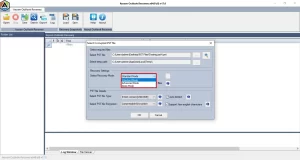
- Select the recovery mode- Standard, Advanced & Deep Mode.
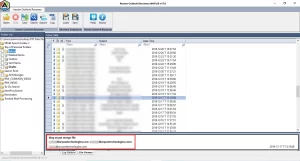
- Select the PST file and preview its properties.
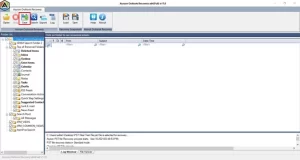
- Press the Save button to store the recovered data in your preferred format.
- Pick the Save as PST option and apply the Date Filter if you only need specific emails.
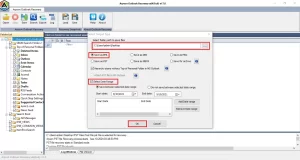
- Choose a destination folder on your computer and save the new PST file.
Additional note: You can also fix SQL Server Error Code 50000 with the above-mentioned software.
Final Thoughts
When Outlook Error 0x800ccc13 appears, it can prevent you from sending or receiving emails properly. Most of the issues are common so they can be resolved like checking for stuck emails, repairing corrupted system files, updating Outlook, or disabling problematic add-ins. The above-mentioned built-in methods can work only if your PST files are healthy. It can prevent this error in the future, keeping your email communication smooth and uninterrupted.
Frequently Asked Questions:
Q.1 Can I fix Outlook Error 0x800ccc13 without technical help?Ans: Yes, many common causes of this error can be resolved without technical skills. You can delete stuck emails, update Outlook, repair minor system file issues, or disable problematic add-ins to restore normal functionality.
Q.2 What is the best solution to fix Outlook Error 0x800CCC13?Ans: The most effective solution depends on the cause. For minor issues, manual fixes like removing stuck emails or updating Outlook often work. For severe PST corruption, a professional repair tool ensures quick recovery without data loss.
Q.3 How do I fix Outlook Error 0x800ccc13 “cannot connect to the network”?Ans: This error usually occurs due to network issues, corrupted PST files, or faulty add-ins. You can troubleshoot by checking your internet connection, repairing PST files, updating Outlook, or running it in Safe Mode to identify interfering add-ins.
About The Author:
Adom Smith is a DataRecoveryHelp Technology Writer. He is a technology enthusiast with over 3 years of experience in Data Recovery, IoT, Artificial Intelligence, and Robotics. He enjoys researching and sharing DIY solutions as well as tips and tricks for resolving Windows technical issues.
Realted Post


