

-
Written By Adom Smith
-
Updated on March 2nd, 2026
How to fix SQL error 1067 with a simple method & technique
Summary: Microsoft SQL Server runs databases that store key information for applications, websites, and services. When the server stops or fails to start, it can disrupt the work of big companies. One common error that many users see is SQL Error 1067. This issue often appears when you try to start the SQL service, and instead of working fine, it crashes with a message. This guide, we will explain to you about the SQL Error 1067, what causes it, and how you can apply a SQL Error 1067 fix without hassle. We will also explain how Aryson SQL Database Recovery Software can help in cases where corruption leads to this error. By the end, you will have a clear method and a reliable solution to resolve this problem.
Download Now Purchase Now
Download Now Purchase Now
What is SQL Error 1067?
SQL Error 1067 usually shows up when the SQL Server (MSSQLSERVER) service fails to start. The error message often reads:
- The SQL Server (MSSQLSERVER) service terminated with service-specific error 1067.
- The process terminated unexpectedly.
- This error occur and mean that the SQL Server service cannot continue due to some internal issue. It could be corruption, a damaged system file, low resources, or misconfigured settings. The problem can stop the database engine from running, and if left unresolved, it can affect your entire workflow.
Causes of SQL Server Error Code 1067
There is not just one reason behind error 1067 in SQL Server. Here are the most common factors:
- If MDF or NDF files are damaged, the SQL service may not start.
- Wrong startup parameters or incorrect SQL setup can block the service.
- Low memory disk space may also be the reason for preventing proper startup.
- If the SQL service account does not have the required permissions, it can activate the error.
- If SQL Server installation files are damaged, the service can fail.
Methods to Resolve SQL Error 1067
Now, let us move toward practical solutions. Below are some tested techniques that often fix this error.
Solution 1: Check Event Viewer Logs
Windows Event Viewer records all system errors. You can use it to see the reason behind the SQL Error 1067.
- Open the search bar and type Event Viewer.
- In the left panel, go to Windows Logs > Application.
- Filter logs by choosing MSSQLSERVER as the source.
- Look at the critical errors and note down the exact cause.
Solution 2: Review SQL Server Error Log
SQL Server also maintains its own error log.
- Open SQL Server Management Studio (SSMS).
- Go to Object Explorer > Management > SQL Server Logs.
- Double-click the current log file.
- The log shows warnings and messages that can guide you to the root issue.
Solution 3: Verify SQL Server Service
If the SQL Server service is not set correctly, SQL Error 1067 can appear.
- First, open SQL Server Configuration Manager and locate the SQL Server service.
- Next, check if the service start mode is set to Automatic, so it runs without manual intervention.
- After that, confirm that the service account has full rights to access the required files and resources.
- Finally, if the account is faulty, change it to a valid account with proper permissions.
Solution 4: Repair Corrupt SQL Installation Files
If the installation files of SQL Server are damaged, you can repair them.
- To begin, open setup.exe from your SQL Server installation folder and wait for the setup to load.
- Next, go to the Maintenance tab, where you will find repair options for the server.
- Finally, choose Repair and allow the wizard to fix any missing or corrupt files, ensuring the SQL Server runs without error.
Solution 5: Free Up Memory and Disk Space
A system with low memory or storage can stop SQL services.
- Press Ctrl + Shift + Esc to open Task Manager.
- Close programs that use a lot of memory.
- Memory usage should stay below 90%.
- Check disk space on the SQL Server drive. Free up the space for moving files to another drive.
Solution 6: Fix Corrupt SQL Database Files
If database files are corrupted, then also SQL Servers cannot start, which can lead to Microsoft SQL Server Error 1067. In such cases, manual checks may not help. This is where a professional tool comes in handy.
Solution 7: All-in-One SQL Error 1067 Fix
When corruption is the main cause of SQL Error 1067, manual fixes are not enough. You need a reliable solution to repair database files. The Aryson SQL Database Recovery Software is one of the best tools for this task. This tool can also repair and restore damaged SQL databases while keeping all objects safe. It can make sure that there is no data loss during the operation.
Key Features of Aryson SQL Recovery Tool
- Repairs both minor and severe SQL database corruption.
- Recovers tables, triggers, stored procedures, views, indexes, and more.
- Supports SQL Server versions 2000 up to 2022.
- It can help errors like Outlook Error 0x800ccc13.
- Offers two recovery modes: Standard and Advanced.
- Exports recovered files into SQL Server or SQL-compatible scripts.
- Allows recovery of deleted records as well.
- With these features, you can resolve Error 1067 in SQL Server caused by database corruption.
How to fix Error Code 1067 in Microsoft SQL Server:
- Firstly, download the Aryson SQL Database Recovery Softwarein your system.

- Next, Click on Select file/folder to browse and select your MDF file.
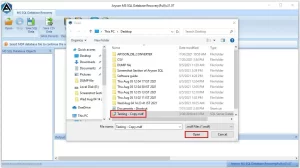
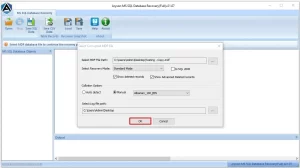
- After that choose the recovery mode according to you.
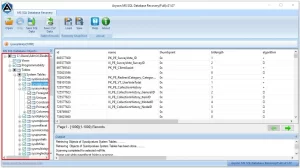
- Scan and preview the recovered database.
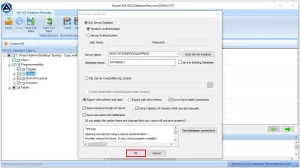
- Finally, click on Save to SQL Server or export as SQL scripts.
Final Words
SQL Server 1067 is a common error that can cause major disruption in work if not resolved. You can try basic methods mentioned above like reviewing logs, verifying services, or repairing installation files. However, when corruption in the database is the root cause, the option is to use above mentioned software. This tool can do the smooth repair, restores lost objects, and SQL Error 1067 fix without data loss. If you face persist ent issues, do not delay the fix as it may affect business data.
Frequently Asked Questions:
Q.1 What is SQL Error 1067?
Ans: SQL Error 1067 shows up when the SQL Server service fails to start because of damaged files, incorrect configurations, or permission issues. It stops the database service from running.
Q.2 Why does SQL Server show error 1067 when starting the service?
Ans: The error appears due to corrupted registry entries, faulty system files, wrong service settings, or missing dependencies required by SQL Server.
Q.3 How can I fix SQL Server Error 1067?
Ans: You can fix it by checking configuration settings, repairing system files, updating log-on credentials, or reinstalling SQL Server. If the database files are corrupted, you can use Aryson SQL Database Recovery Software to repair and restore MDF files without data loss.
Q.4 Can third-party software cause SQL Server Error 1067?
Ans: Yes, third-party applications like security tools or backup programs may conflict with SQL Server services, which can lead to Error 1067. Removing or disabling conflicting applications and using a trusted repair tool ensures smooth recovery.
About The Author:

Adom Smith is a DataRecoveryHelp Technology Writer. He is a technology enthusiast with over 3 years of experience in Data Recovery, IoT, Artificial Intelligence, and Robotics. He enjoys researching and sharing DIY solutions as well as tips and tricks for resolving Windows technical issues.
Realted Post


