

-
Written By Adom Smith
-
Updated on March 2nd, 2026
Fix SQL Server Error 926: Step-by-Step Guide
User query: Hi, I’m Mark from the USA. Recently, my SQL Server database went into suspect mode, and now I keep seeing SQL Server Error 926 whenever I try to connect. Can someone explain why this happens and provide me with the steps on how to fix it?
Summary: Running into Microsoft SQL Server 2008 R2 Error 926 can be very hectic if your daily work depends on databases. This error happens when your database goes into suspect mode. It stops you from accessing important data until it is fixed. In this article, we will discuss the SQL Error Code 926 and offer some clear solutions to fix it. The Aryson SQL Database Recovery Tool can also help you recover your SQL database easily and quickly.
Download Now Purchase Now
Download Now Purchase Now
What is SQL Database Suspect Error 926?
SQL Server Error 926 is an error notification associated with a database being flagged as suspect. It indicates that the database cannot be opened due to it being damaged, incomplete, or detected an inconsistency during the startup process. Until it can be resolved, the server will deny users access to the database.
This error generally pops up like this:
| Error 926: Database ‘DB_Name’ cannot be opened.It has been marked SUSPECT by recovery.See the SQL Server error log for more details. |
Why does SQL Server Error 926 Occurs?
This error can occur due to several reasons, which are given below:
- If your server crashes or shuts down improperly, it may result in corruption in SQL databases.
- Faulty drives, bad sectors, or memory failures often cause incomplete write operations that make a database suspect.
- If the .ldf file becomes damaged, SQL Server fails to recover properly during startup.
- Errors during recovery after a crash or backup restore can push the database into suspect mode.
- Moreover, if the disk runs out of space while SQL is writing data, the process halts and can corrupt the database.
Signs That Indicate Error Code 926 in SQL Server
- Database status shows as Suspect in SQL Server Management Studio (SSMS).
- Users cannot connect to the database.
- SQL Server logs contain Error Code 926 in SQL Server messages.
- Performance drops can result in the database becoming inaccessible.
When you see these warning signs, they should be fixed to prevent data loss.
Risks of Not Fixing SQL Server Error 926 Quickly
- If corruption spreads, some data may never be recovered.
- Businesses relying on SQL Server databases may face disruptions.
- Unavailability of records can delay transactions and operations.
- Furthermore, clients lose trust when services are interrupted.
Step-by-Step Solutions to Fix SQL Server Error 926
There are many approaches, including manual methods and automated solutions, that can resolve the issue. Let’s go over them step by step.
Method 1: Review SQL Server Logs and Confirm Issue
- Firstly, launch SQL Server Management Studio (SSMS).
- Next, attempt to connect to the database. You will see that it is noted as Suspect.
- Now, go to SQL Server Logs (View > SQL Server Logs) to find fine-grained error messages.
- After that, confirm whether it’s SQL Server 926 or a different error.
This helps you to identify the problem, it can be due to log file corruption, disk space, or something else.
Method 2: Set Database to Emergency Mode
- Initially, if the database is indeed in suspect mode, the first step is to bring it into Emergency Mode. This allows you to access it with minimal functionality.
- Further, run the following SQL command:
| ALTER DATABASE [YourDBName] SET EMERGENCY; |
This forces the database to open in read-only mode so you can attempt recovery.
Method 3: Run Consistency Check with DBCC CHECKDB
- Once the database is in Emergency Mode, run a consistency check to identify corruption:
- If the output shows corruption, you’ll need to use the REPAIR_ALLOW_DATA_LOSS option.
| DBCC CHECKDB ([YourDBName]); |
Method 4: Repair the Database to Fix Microsoft SQL Server Error 926
- If corruption exists, execute:
| ALTER DATABASE [YourDBName] SET SINGLE_USER WITH ROLLBACK IMMEDIATE;DBCC CHECKDB ([YourDBName], REPAIR_ALLOW_DATA_LOSS);ALTER DATABASE [YourDBName] SET MULTI_USER; |
This attempts to repair the database. Keep in mind that REPAIR_ALLOW_DATA_LOSS may result in a risk of data loss.
Method 5: Restore from a Backup
If you have a recent backup, the restored data is the safest option. Steps:
-
- Primarily, the corrupt database is detached or set offline.
- Afterwards, use the following command:
| RESTORE DATABASE [YourDBName] FROM DISK = ‘D:\Backup\YourDBName.bak’ WITH REPLACE; |
- Once restored, set the database online.
Method 6: Professional Tool to Fix SQL Server Error 926
The MS SQL Recovery Tool is a reliable solution to resolve SQL Server Error 926. It helps you to repair corrupted MDF/NDF files and restores deleted records without any data loss. This tool also recovers essential data like tables, triggers, views, and stored procedures. With the advanced recovery modes and a preview feature, this tool is fully compatible with SQL Server 2005–2019. Moreover, you can also fix SQL Server Database Error 8967 and more with this top-notch utility.
Simple Steps to Resolve SQL Database Suspect Error 926
- First, download & install the MS SQL Recovery Tool on your PC.2
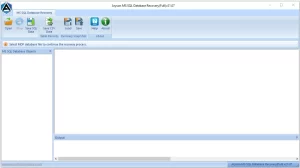
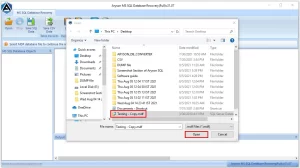
- Now, click on Open to add a corrupted/damaged SQL file.
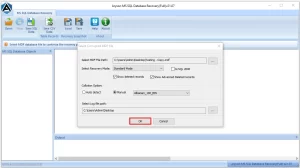
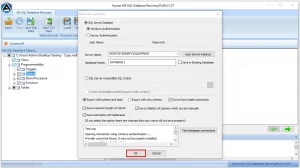
- Then, choose Recovery Mode and other options. Click OK.
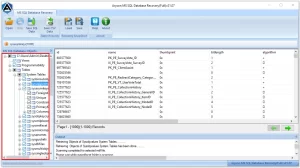
- After that, you can preview all the recovered files.
- Lastly, click on the Save button and choose different saving formats.
Conclusion
In this complete blog post, we explained several methods to fix SQL Server Error 926. You can recover it by using the manual method or a professional tool. If your SQL file is severely corrupted or damaged, you can use the recommended professional tool. It gives instant recovery without changing any format or structure. In addition, you can download the demo version of this tool to recover your corrupted file. But, to save these recovered files, there is a need to download the full version of this tool.
Frequently Asked Questions:
Q.1 How to resolve a suspect MSDB database issue?
Ans: You can bring the MSDB database into Emergency Mode, run DBCC CHECKDB, and attempt repair. If that doesn’t work, restore MSDB from a backup.
Q.2 How to fix Error 926 in Sybase ASE within Microsoft SQL Server?
Ans: Error 926 in Sybase ASE often appears due to corrupted system databases. The fix usually involves restoring from backups or running a repair process:
1. Recover corrupted .mdf and .ndf files.
2. Repair damaged log files.
3. Work with large databases without data loss.
4. Support all SQL Server versions, including SQL Server 926 issues in older builds.
5. For enterprise-level cases where downtime must be minimal, automated tools are often the most practical and cost-effective solution.
Q.3 What is the best solution to resolve SQL Server error 926?
Ans: The best approach depends on your situation. If you have a backup, restoring is safest. If not, using the Aryson SQL recovery tool is the most reliable way to fix it without risking major data loss.
Q.4 Can I fix SQL Server Error 926 without a backup?Ans: Yes, you can use:
| DBCC CHECKDB with the REPAIR_ALLOW_DATA_LOSS command or a recovery tool. |
However, repairing without a backup may cause some data loss.
Q.5 What are the risks of not fixing SQL Server Error 926 quickly?
Ans: Delaying the fix can result in permanent corruption, extended downtime, financial losses, and even compliance issues if critical data is lost.
About The Author:

Adom Smith is a DataRecoveryHelp Technology Writer. He is a technology enthusiast with over 3 years of experience in Data Recovery, IoT, Artificial Intelligence, and Robotics. He enjoys researching and sharing DIY solutions as well as tips and tricks for resolving Windows technical issues.
Realted Post


