

-
Written By Adom Smith
-
Updated on February 28th, 2026
How to Fix Outlook 0x80040900 Error Permanently
User Query: When my Outlook keeps showing me error 0x80040900, it results in preventing me from sending or receiving emails. This error is now starting to affect my work, and I feel like I might lose important messages or attachments if I try random fixes. Can you suggest any reliable way to solve this problem while keeping in mind that there should be no risk of data loss?
Summary: Outlook is the email program mostly used for managing people’s emails, calendars, and contacts. Sometimes, users can run into problems, like the 0x80040900 error, which usually happens when Outlook can’t connect to the email server. When this error shows up, it can stop you from sending or receiving emails. In this guide, we’ll go through some easy solutions to fix the Outlook 0x80040900 Error. We’ll also show you that Aryson PST Recovery Tool can help get your Outlook back to normal with ease.
Download Now Purchase Now
What is Outlook Send/Receive Error 0x80040900?
The 0x80040900 error is a send/receive problem that appears when Outlook cannot communicate with the email server. It usually happens due to network problems, incorrect server configuration, or damaged Outlook data files.
Error Message which is shown on the screen:
“Task Mailbox – Sending/Receiving reported error (0x80040900): Outlook cannot connect to the server.”
Manual Ways to Fix Outlook 0x80040900 Error
When you are the users who are facing this same error, don’t worry, it can often be fixed with some simple troubleshooting steps. Below are some practical methods you can try when the problem is not too severe.
Method 1: Check Your Internet Connection
- Outlook requires a stable internet connection to send and receive emails.
- Ensure your internet is active and reliable.
- When there are wire connections, you should always check if there are any faults in the connection of the Ethernet cables.
- Test your connection by opening a browser and checking speed and stability.
Method 2: Resolve Outlook 0x80040900 Error by Server Settings
- Incorrect server settings can also interrupt the connection between Outlook and your account.
- Open Outlook and navigate to File.
- Select the Account Settings, select your email account, and click on Change.
- Check all the settings under the incoming and outgoing servers.
- Finally, check and make changes if there are any incorrect entries, and save those changes.
Drawbacks of Manual Fixes
While manual fixes are free, they have some limitations:
- While manual fixes are free, they have some limitations:
- Needs technical knowledge: Manual fixes can be tricky without some experience.
- Risk of losing data: making wrong moves can result in deleted emails or contacts.
- Lengthy process: Finding every issue and then fixing the issue can be very slow.
- Doesn’t always work on damaged profiles: Badly corrupted Outlook files may still cause errors.
Method 3: Repair PST File to Fix Outlook 0x80040900 Error
The Aryson PST Recovery Tool is a recommended solution for fixing the Outlook issues, which can include the 0x80040900 error and others. It can effectively repair every corrupted PST file, which results in recovering lost emails, contacts, calendars, and attachments. This utility is compatible with both Windows and Mac systems. It has a very user-friendly interface that can make operation easy for both technical and non-technical users. Some of the related errors, like Windows Error Code 0x80070005, can also be fixed.
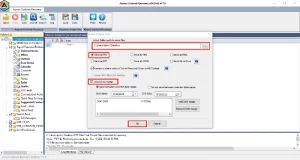
Follow the steps to fix Outlook 0x80040900
- First, download and install the PST Recovery Tool on your computer.
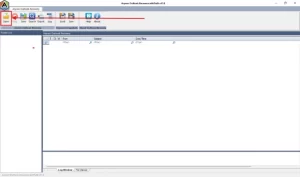
- After that, click the Open button to open the PST file that you want to restore.
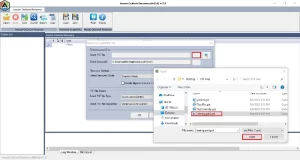
- Utilize the features provided as per your requirements for recovery.
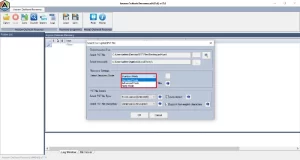
- Then, click Save to save the data in your desired format.
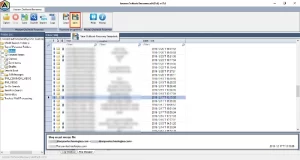
- Click Next to finish Outlook 0x80040900 Error Repair.
- Open the Control Panel by pressing the Windows key and typing Control Panel.
- Click on Mail in Microsoft Outlook.
- Select Show Profiles, then click Add.
- Follow the prompts to set up your email account in the new profile.
- In Outlook, navigate to the File, then select Info > Account Settings > Account Settings.
- Choose your email account and click Change.
- Check both Incoming and Outgoing server details, and correct them if needed.
- Save the changes and restart Outlook.
- Firstly, open the Control Panel and select Programs and Features.
- Locate Microsoft Office in the list, right-click on it, and select Change.
- Finally, select the Repair option and follow the on-screen instructions to repair.
Method 4: Fix the corruption from the New Outlook Profile
The error can occur because of corruption in the Outlook profile. Creating a fresh profile can help resolve the issue.
Method 5: Verify and Correct Email Account Settings
when there are incorrect email account settings, which can also block Outlook from connecting to the server.
Method 6: Repair Microsoft Office Installation
Your Outlook installation files might be damaged. Just repairing MS Office can also fix the problems.
Read also: Delete Multiple Emails in Outlook
Conclusion
The Outlook 0x80040900 error can be complex for users’ email workflow, but it can be fixed with the help of the above-mentioned solutions. Manual methods may help with minor issues but have limitations. But some of the errors are persistent and aren’t fixed by the built-in solutions, the Aryson PST Recovery Tool is a reliable solution. It can be used for repairing PST files, recovering lost data, and restoring Outlook functionality efficiently.
Frequently Asked Questions:
Q.1 What causes the Outlook 0x80040900 error?
Ans: It is often caused by incorrect server settings, corrupted PST files, firewall restrictions, or temporary server issues.
Q.2 How do I know if I’m facing error 0x80040900?
Ans: A message will appear in Outlook stating that it cannot connect to the server with error code 0x80040900 when sending or receiving emails.
Q.3 Is error 0x80040900 related to server downtime?
Ans: Temporary server downtime can cause the error, but it is usually triggered by local Outlook issues or misconfigurations.
About The Author:

Adom Smith is a DataRecoveryHelp Technology Writer. He is a technology enthusiast with over 3 years of experience in Data Recovery, IoT, Artificial Intelligence, and Robotics. He enjoys researching and sharing DIY solutions as well as tips and tricks for resolving Windows technical issues.
Realted Post


