

-
Written By Adom Smith
-
Updated on March 2nd, 2026
How to Outlook Error 0x800ccc0f—Fix It Now (Easy Guide)
Summary: Outlook Error 0x800ccc0f is a common problem that has been faced by a lot of users whenever they try to send or receive e-mail in Microsoft Outlook. This error may affect email sync, thereby causing communication delays. The most common reasons for this error are unstable internet connections, incorrectly configured server settings, and antivirus programs blocking the connection. If this problem is not resolved quickly, it will result in loss of productivity and difficulty in accessing important emails. This blog will guide you and give you simple solutions for fixing this issue and restoring smooth email access.
Download Now Purchase Now
Download Now Purchase Now
What Is Outlook 0x800ccc0f Error?
The 0x800CCC0F Outlook File error appears when users try to send or receive emails. It happens particularly with large attachments, or when multiple emails are being processed at the same time. Additionally, the cause of this problem also occurs due to Outlook account configuration, or the user has a slow or unstable internet connection.
Common Reasons Behind MS Outlook Error 0x800ccc0f
When Outlook is unable to keep a steady connection with the mail server, this error typically arises. Here you can learn a few more causes of this problem.
- When there is weak or unstable internet connection, it can disrupt the email transfer process.
- Also, when there are incorrect incoming or outgoing mail server settings in Outlook.
- If Outlook connections are being blocked by the user’s firewall or antivirus program.
- This error also occurs when the large email attachments take too long to send or receive.
- When there is a corrupted Outlook data file or a damaged email profile.
Important Note: Firstly, you should always check your internet connection and email settings, as these are the most common and easiest to fix.
Approach 1: Manual and Cost-Free Method to Fix Microsoft error 0x800ccc0f
Below are some techniques to fix this issue based on the possible reason for the problem. First, try the simple manual methods and then proceed to the professional solutions.
1: Check Your Internet Connection
A weak or unstable internet connection can affect Outlook’s mail server connection. Thus, make sure that your internet is working properly and try reconnecting before you open Outlook.
2. Verify Email Server Settings
Wrong email server settings may cause Outlook to not connect to the mail server. Furthermore, it is necessary to check if the encryption settings, port numbers, and incoming and outgoing server names are correct. Once the changes are done, restart Outlook and then try sending and receiving emails.
3: Temporarily Disable Antivirus or Firewall
Also, security software like antivirus or a firewall can prevent Outlook from connecting to the mail server. Hence, it is advisable to first turn off the security program and then see if the error still exists. Then, include Outlook in the trusted list so that there will be no more such errors.
4: Reduce Email Attachment Size
Reduce the size of email attachments or compress files before resending. As large attachments can lead to Outlook error code 0x800ccc0f by causing connection issues and slowing down email transmission.
5: Repair Outlook Data File
When there is a damaged Outlook data file, it can cause errors like 0x800ccc0f. So use Outlook’s built-in repair tool to fix the PST file. After this, you have to restart Outlook and check if emails are working properly.
6. Increase the server timeout setting
By increasing the server timeout, Outlook has more time to build a connection with the mail server, which may help avoid errors.
- Firstly, you have to open Outlook on your system.
- Next, you have to navigate to File and then select Account Settings.
- Afterward, select your email account and click Change.
- Now, click on More Settings and then go to the Advanced tab.
- Subsequently, adjust the Server Timeout slider to a higher value.
- Finally, click OK to save the changes and restart Outlook to fix 0x800ccc0f Outlook error.
Limitations of Manual Methods
In basic problems, manual fixes can be helpful, but they are not always reliable for all Outlook problems.
- This approach requires more time, especially when the mailbox size is large.
- Also, these methods require technical knowledge and careful configuration
- Changing the settings incorrectly may lead users to lose data.
- In this approach, the manual fixes may not work if the PST file is badly corrupted
- As well as troubleshooting needs repeated trials, which can be frustrating
Pro Tip: If the error keeps coming back or the PST file is corrupted, a professional repair tool can save time and effort.
Approach 2: Recommended Automated Tool For Outlook Error 0x800ccc0f
If the manual method doesn’t help you to fix this error, then a professional tool can be helpful. Aryson Outlook PST Repair Tool is the one that you can rely on for fixing corrupted Outlook data files of different kinds. Not only does it help, but it also takes less effort to resolve connection‑related errors. This tool performs a safe scan on your PST files and repairs them without affecting your emails, attachments, contacts, and calendars. This approach becomes an effective option that prevents the error when built‑in methods are unable to fix it.
Follow these Simple Steps to Fix Outlook Error Code 0x800ccc0f:
- Firstly, you have to download and install the Outlook PST Repair Tool on your system.
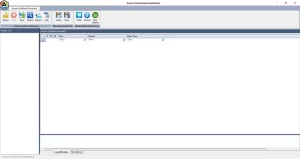
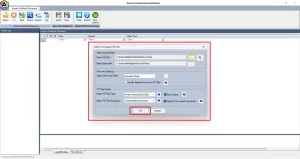
- Next, click Open to locate the corrupted PST file and select the Recovery Mode according to the corruption level.
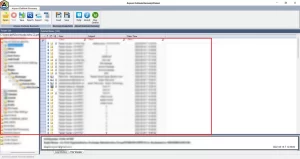
- Now, you can cross-verify the recovered data in the preview window.
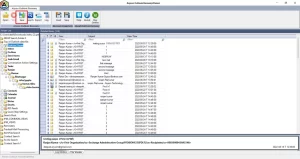
- Finally, you have to click on the Save option and select the saving file format according to your requirement.
Exclusive Features of Aryson Outlook PST Repair Tool
This software fixes corrupt or damaged Outlook files and recovers all emails, attachments, contacts, calendars, tasks, and notes.
- You can choose Standard, Advanced, or Deep scan depending on how much the PST file is corrupted.
- Even secured PST files can be recovered without the need for the original password.
- You can save your recovered data into PST, EML, MSG, MBOX, and many more formats.
- You can also check emails and attachments before final recovery.
- In this approach, the original email folders and hierarchy remain unchanged.
- Also, the simple interface makes it suitable for both beginners and advanced users.
Conclusion
In this blog, we discussed the common reasons for the Outlook Error 0x800ccc0f and suggested some easy manual ways to solve the problem. The manual procedure involves the checking of internet connection, confirming server settings, and repairing PST files. However, this approach is time-consuming. We also covered a reliable professional tool that quickly repairs corrupted PST files and restores all emails and attachments. This approach helps Outlook to run smoothly. By choosing the right method, you will be able to fix this error.
Frequently Asked Questions:
Q.1. What causes Outlook Error Code 0x800ccc0f?
Ans: There are many causes of Outlook Error 0x800ccc0f, like poor internet connection, wrong server settings, or a corrupted PST file. In such cases, Aryson Outlook PST Repair Tool can help fix damaged PST files safely.
Q.2. How do I fix Outlook Error 0x800ccc0f?
Ans: You can fix this error by checking your network, correcting email settings, and repairing the PST file. If these manual methods do not work, then you can choose the Aryson Outlook PST Repair Tool.
Q.3. Can antivirus software cause Outlook 0x800ccc0f error?
Ans: Yes, sometimes antivirus or firewall software can block Outlook from connecting to the mail server. Temporarily disabling it or adding Outlook to the trusted list often resolves the issue.
About The Author:

Adom Smith is a DataRecoveryHelp Technology Writer. He is a technology enthusiast with over 3 years of experience in Data Recovery, IoT, Artificial Intelligence, and Robotics. He enjoys researching and sharing DIY solutions as well as tips and tricks for resolving Windows technical issues.
Realted Post


