-
Written By Adom Smith
-
Updated on February 28th, 2026
How to Copy SQL Server From One Server to Another SQL Server?
Summary: SQL Server is used to store, retrieve, and manage data from various server applications, including SQL databases. Additionally, it supports SQL for queries and manipulating the database. However, most of the users want to copy SQL Server from one server to another to use the relevant resources and perform the CRUD operation. In this blog, we delivered the various manual methods to perform the task. Additionally, we will also introduce the SQL Server Database Migration Tool to copy the SQL Server smoothly without altering any tables and data files. Download Now Purchase Now
Need to Copy SQL Server Database From One to Another Server
Here are the most common and practical reasons to copy an SQL Server database from one server to another:
- To move one system to another for an upgrade and faster data performance.
- Backup data saves your sensitive data from being lost in unforeseen circumstances.
- To break down the server load on another subserver to reduce the load.
- To replicate the live environment on a separate server to test the database file.
- In the scenario of scheduled maintenance, it ensures the server’s availability.
- It is also helpful in the case of data archival to reduce the load and smooth the functioning of the operations.
Manual Method to Copy SQL Server from One Server to Another
Several manual methods are available to copy an SQL server to another one. Some of them are mentioned below.
Backup and Restore
- Download and install the SQL Server Management Studio (SSMS) application on your system.
- After that, connect the SQL server with the SSMS application via login.
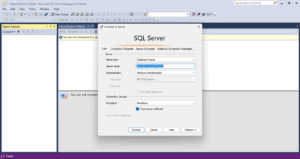
- Go to the Object Explorer and choose the Database option.
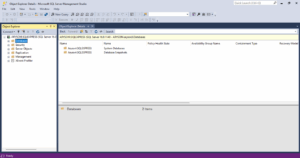
- After that, right-click on it and choose the Tasks option.
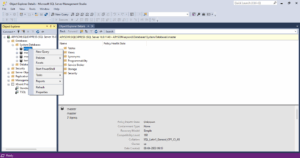
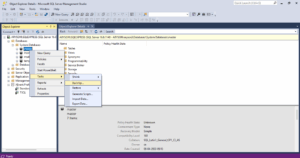
- Under the Tasks option, click on the Back Up option.
- Browse and select the saving location of the backup file.
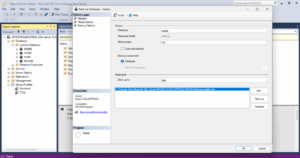
- Now, move the backup file to the destination system where your other SQL server is located.
- Open the SQL Server Management Studio (SSMS) on your new system.
- After that, click on the Database folder and choose the New database option.
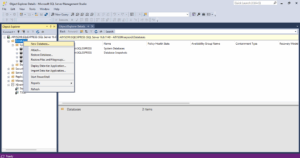
- Here, browse and select the desired Bak file to access it on the new server.
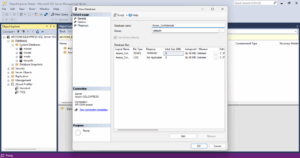
- Click OK to sync the new server within the new Server Management Studio.
- In the end, make sure all your .bak file data is accessible and remains intact.
Generate Scripts to Copy SQL Server From One Server to Another
- Download and install the SQL Server Management Studio (SSMS) application on your system.
- After that, connect the SQL server with the SSMS application via login.
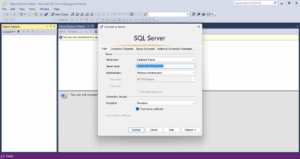
- Go to the Object Explorer and choose the Database option.
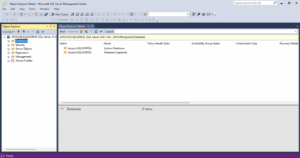
- After that, right-click on it and choose the Tasks option.
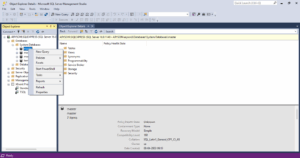
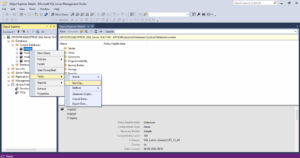
- Under the Tasks option, click on the Generate Script option.
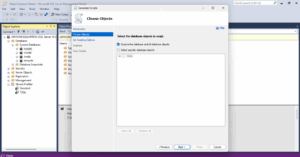
- Under the Choose Object, select the database object to script as needed.
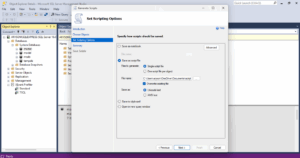
- After that, save this file as a script file and choose the saving location.
- Now, move the script file to the destination system where your other SQL server is located.
- Open the SQL Server Management Studio (SSMS) on your new system.
- After that, click on the script file and run this file on your SSMS application.
- Click OK to sync the new server within the new Server Management Studio.
- In the end, make sure all your .bak file data is accessible and remains intact.
Limitations of the Manual Method
Here are the key limitations of the manual method to migrate SQL databases from one server to another:
- If you have a large data file, it takes a significant amount of time.
- The manual method is prone to error and leads to data loss.
- This method requires technical knowledge to accomplish the task.
- Sometimes, the server is discontinued, causing downtime and disruption.
- Manual migration might face compatibility issues between server versions.
Professional Method to Copy SQL Server from One Server to Another
Users often report that the manual method has certain limitations that prevent them from reaching their full potential. Therefore, a better option is the expert-recommended Aryson SQL Server Database Migration Tool. This tool enables transferring an MS SQL Server to a new server without any data loss. It features a dual data transfer mode, supporting the migration of tables and databases. Moreover, the tool lets you fix the SQL Server database stuck in restoring state.
To ensure how well the software performs, run the free trial version and evaluate its functionalities. Whether you are a tech expert or a new user, this is handy to operate for all.
Steps to Migrate SQL Database From a SQL Server to Another One
- Install and launch the Aryson SQL Server Database Migration Tool as an administrator.
- You have two authentication modes. Choose any of them as needed.
- Enter the credentials and then click on the Connect button.
- Under the Data Transfer Mode. Choose the Tables or Databases option.
- Choose the Destination Source as MySQL & MySQL Script. Then click on the Connect button.
- In the end, click on the Start button to proceed further.
Conclusion
Migrating SQL databases between servers keeps everything running smoothly and in good form. Manual processes do work, but tend to need technical expertise. They also have the risk of losing data, making mistakes, or taking hours offline. Avoid this by trying good SQL migration software. It makes it easy and helps keep your precious data safe. Test the free version first to copy SQL Server from one server to another. Pick the process that best suits your business requirements.
Frequently Asked Questions:
Q: How do I insert data from one SQL Server to another?
Ans: To insert the data from one SQL Server to another, you use several methods based on your setup and requirements. Also, you can use the professional method that lets you get efficient and convenient results.
Q: Can I copy a database without downtime?
Ans: Yes, you can use SQL Server replication, log shipping, or Always On Availability Groups to copy with minimal downtime.
About The Author:

Adom Smith is a DataRecoveryHelp Technology Writer. He is a technology enthusiast with over 3 years of experience in Data Recovery, IoT, Artificial Intelligence, and Robotics. He enjoys researching and sharing DIY solutions as well as tips and tricks for resolving Windows technical issues.
Realted Post